
Use On-Page Variables
Custom variables (built-in)
These variables are available automatically on every website with the tracking code installed - no setup required. Use them in Personalization experiments, or Surveys, on every subscription type.
How to use them
In the Visual Editor, click the text element you want to personalize, then choose Edit Content. Insert any of the variables below directly into your text.
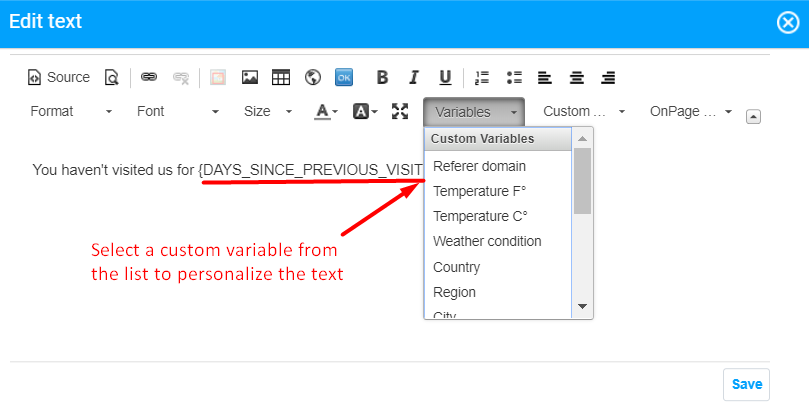
Available variables
|
Variable |
Description |
|
|
The visitor's country. Accuracy: 100%. |
|
|
The visitor's region. Accuracy: 80%. |
|
|
The visitor's city. Accuracy: 70%. |
|
|
The domain of the referring website (e.g. |
|
|
Number of pageviews in the current session (e.g. |
|
|
Days since the visitor's first visit, counted from when the tracking code was installed (e.g. |
|
|
Days since the visitor's last visit (e.g. |
|
|
Detected browser: Firefox, Chrome, Safari, Opera, Mozilla, Explorer, Netscape, Camino, OmniWeb, iCab, or Konqueror. |
|
|
Detected browser version (e.g. |
|
|
Detected device type: desktop, mobile, or tablet. |
|
|
Detected operating system: Windows, iOS, Mac, or Linux. |
|
|
The visitor's IP address (e.g. |
|
|
Number of real-time visitors currently on the page. |
On-Page Variables (custom setup)
An On-Page Variable is a piece of your own page's content - like a cart total, a product name, or a price - that you extract and turn into a reusable text variable for A/B tests, Personalization experiments, or Surveys.
Example: capturing the cart total
-
Add a product to your cart, right-click the page, and select View page source.
-
Copy the full source code of your cart page.
-
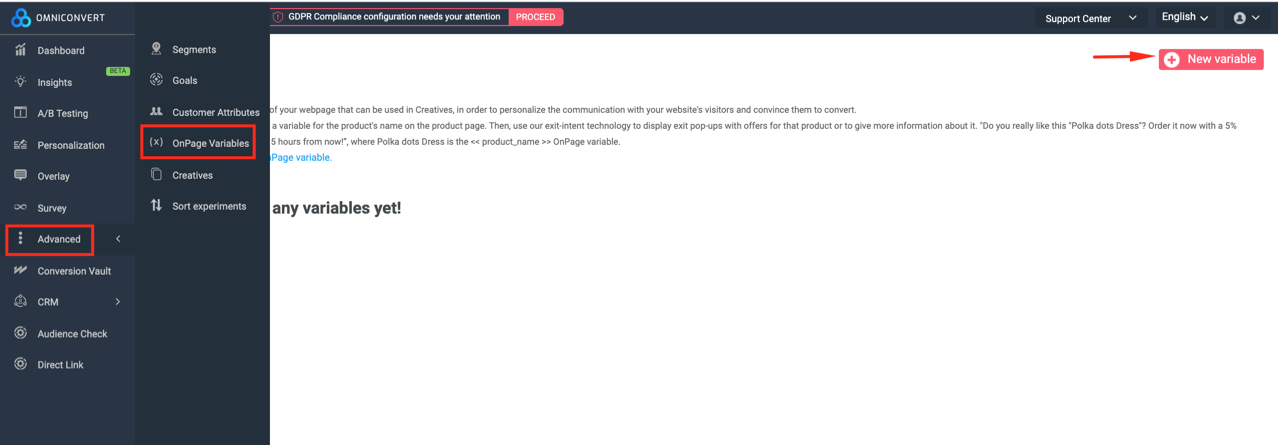
In Explore, go to On-Page Variables and create a new variable.
-
Click upload your own HTML and paste the source code you copied.
-
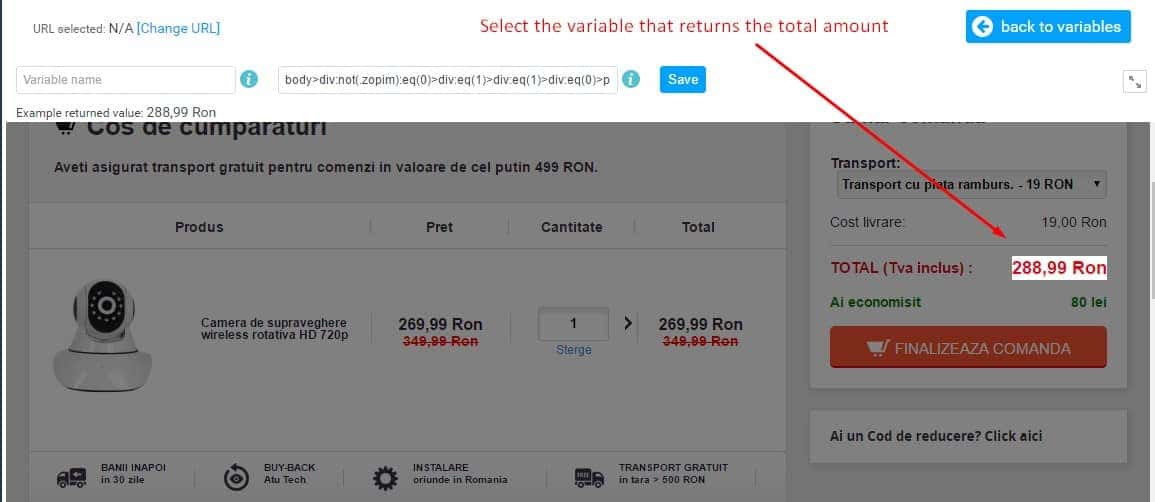
Select the specific piece of content you want to capture - in this example, the element that shows the total cart amount.
-
Name your variable and save it.
This same process works for any piece of content on any page - not just the cart total. The cart total is just one common example.
Good to know
-
You can create and use multiple On-Page Variables on the same page.
-
Explore reads the variable's value based on its position on the page. If the page's structure changes, the variable may no longer be readable, and you'll need to recreate it.
-
Only display experiments using this variable on pages where the variable is actually present.
Once created, you can also use an On-Page Variable to segment visitors within an experiment, not just to personalize text.