
Configure GDPR & Privacy Settings
⚠️ About this article: The settings described below are a legacy feature, built at a time when third-party cookie consent apps weren't yet common - websites needed some way to handle consent, so Explore built one in.
Today, most websites already use a dedicated consent management platform (CMP) of their own. If that's your situation, you likely don't need Explore's built-in GDPR settings at all - what matters instead is how and when you choose to fire the Explore tracking code relative to your own consent tool. See the section near the end of this article on that.
Overview
The User Privacy Settings (GDPR) feature is Explore's own, built-in way of handling visitor consent for websites that don't have their own consent pop-up and need to address visitors from the European Union. You'll find this setting after adding your website to the platform.
For what data Explore collects and which cookies it sets, see Personal Data Review (GDPR).
GDPR Disabled
Keep GDPR settings disabled if either of the following applies:
-
You don't address visitors from the European Union, so you don't need to worry about obtaining their consent before tracking and personalizing their experience.
-
You already use your own pop-up or method to ask for consent, and don't need Explore's.
How to disable it
-
Click Disabled.
-
Click I understand and accept.
-
Click Save consent settings.
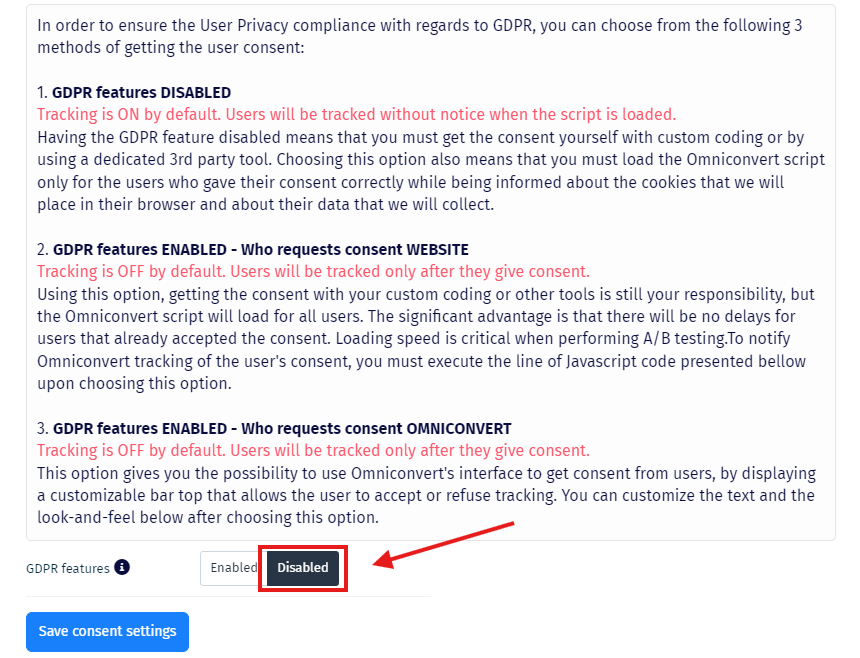
If you disable this feature, make sure you mention Omniconvert to your users as a third-party tool/partner that uses their data to deliver personalized content and improve their experience on your website.
GDPR Enabled
There are two ways to use the Enabled state, depending on whether you already have your own consent pop-up.
Enabled → Website
Use this if you already have your own pop-up asking visitors for consent. You'll need to send Explore the visitor's choice yourself, by adding these two snippets to your source code:
_mktz.saveConsentChoice('yes', 'We value your privacy, so please confirm...', '3'); _mktz.saveConsentChoice('no', 'We value your privacy, so please confirm...', '3');If you enable GDPR but don't implement these snippets, your experiments will not apply at all - Explore is waiting to receive the visitor's consent and never gets it.
Enabled → Omniconvert
Use this if you don't have your own consent pop-up. Explore displays its own consent banner on your website, and no additional implementation is needed.
Using Explore's built-in GDPR functionality is entirely optional. If you don't have your own consent pop-up and don't want to use Explore's either, you can disable the feature completely and inform your users through your own means that Omniconvert is a third-party tool used to customize and improve their experience.
Additional consent code options
For finer control, the following functions are available for use in your website's code:
-
Accept the use of already-existing data - the visitor accepts continued use of everything recorded so far.
_mktz.acceptDataUse(consentText, consentVersion)
-
Delete already-existing data - the visitor refuses use of data recorded so far; that data is scheduled for removal, but new data continues to be collected going forward.
_mktz.refuseDataUse(consentText, consentVersion)
-
Revoke consent and delete recorded data - the visitor revokes previously given consent. Their data will no longer be used and is scheduled for removal.
_mktz.revokeDataUse(consentText, consentVersion)
-
Suppress the opt-in message - use only if your website has its own separate mechanism for asking GDPR consent. This line must be placed before the Explore tracking code.
_mktz.push('suppressOptin');
consentText and consentVersion are optional in all of the above. When using suppressOptin, your website still needs its own widget or banner to ask for consent, and must call _mktz.saveConsentChoice() once the visitor responds - this works similarly to the "Enabled → Website" option above, but is intended for more fine-grained control, such as on specific landing pages or sections of your site.
Using your own consent management platform (recommended)
If your website already has its own consent tool, the real question isn't whether to use Explore's GDPR settings - it's when the Explore tracking code should fire relative to consent. There are three common approaches.
Option 1 - Fire the tracking code without waiting for consent
The tracking code loads immediately, regardless of consent status.
-
Use when: your legal team has determined this is acceptable for your situation, or you're not targeting EU visitors.
-
Trade-off: simplest setup, but may not be compliant if you are addressing EU visitors and haven't confirmed this approach is acceptable.
Option 2 - Fire the tracking code after consent, on next page load
The tracking code only loads once consent has been given, but isn't injected immediately when the visitor clicks accept - it loads normally on the next page they visit.
-
Use when: you want a clean, compliant setup without needing to dynamically inject a script mid-session.
-
Trade-off: the visitor is not included in any experiment during the page where they gave consent - tracking effectively starts one page later.
Option 3 - Fire the tracking code instantly on accept
The tracking code is dynamically injected into the page the moment the visitor clicks accept, without needing a page reload.
-
Use when: you want visitors to be included in experiments as early as possible, even within the same session they gave consent.
-
Trade-off: requires your development team to hook the tracking code injection into your CMP's "on accept" event - more setup work than Options 1 or 2.
Which option is right for you depends on your CMP, your legal requirements, and how much of your traffic you'd lose by waiting for a second pageview (Option 2). If you're unsure, reach out to Omniconvert support.
Using the Opt-Out link
If you want to give visitors a way to opt out of Explore's tracking entirely, append ?mktz_optout=1 to any URL on your website and share that link with them.
Example: https://www.example.com/?mktz_optout=1
Once a visitor opens this link, they are excluded from all tracking by the platform - the tracking code no longer applies for them. The choice is saved in the mktz_optout cookie for 1 year.
If someone opts out by mistake, deleting their cookies opts them back in.
GDPR features must be set to Disabled for the Opt-Out link to work.