
Install via Google Tag Manager
Overview
If you manage your website's scripts through Google Tag Manager (GTM), you can install the Omniconvert Explore tracking code as a Custom HTML tag. This is a convenient option if you don't have direct access to your website's source code.
Keep in mind that any script loaded through GTM fires asynchronously - meaning it loads in parallel with the rest of the page rather than before it. For A/B testing, this can cause flickering: a brief moment where the original page is visible before your experiment variation is applied.
This article explains how to install the code correctly and how to minimize flickering.
Step 1 - Get your tracking code
Log into your Explore account and click the Install button in the header, or click on your active website name and select Tracking Code.
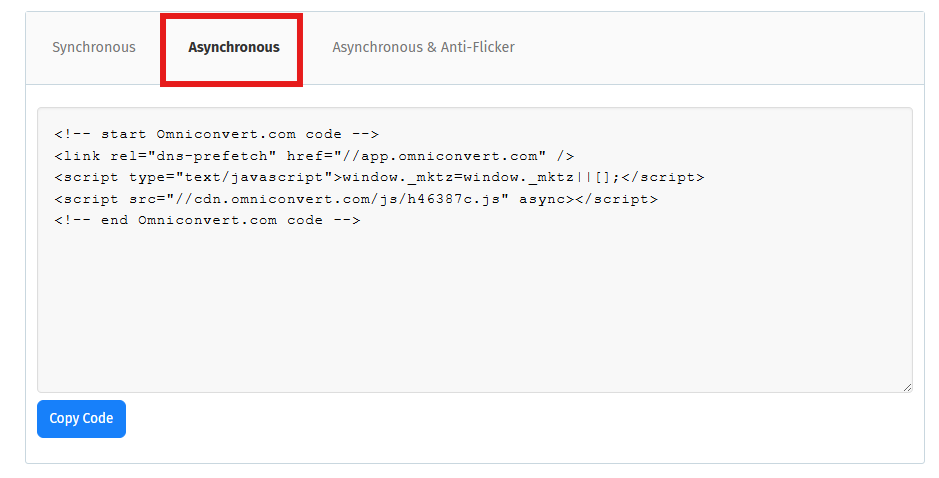
In the tracking code panel, select the Asynchronous option - this is the version you will use in GTM. Copy the code snippet.
Step 2 - Create a new tag in GTM
-
Open your GTM workspace and click New Tag.
-
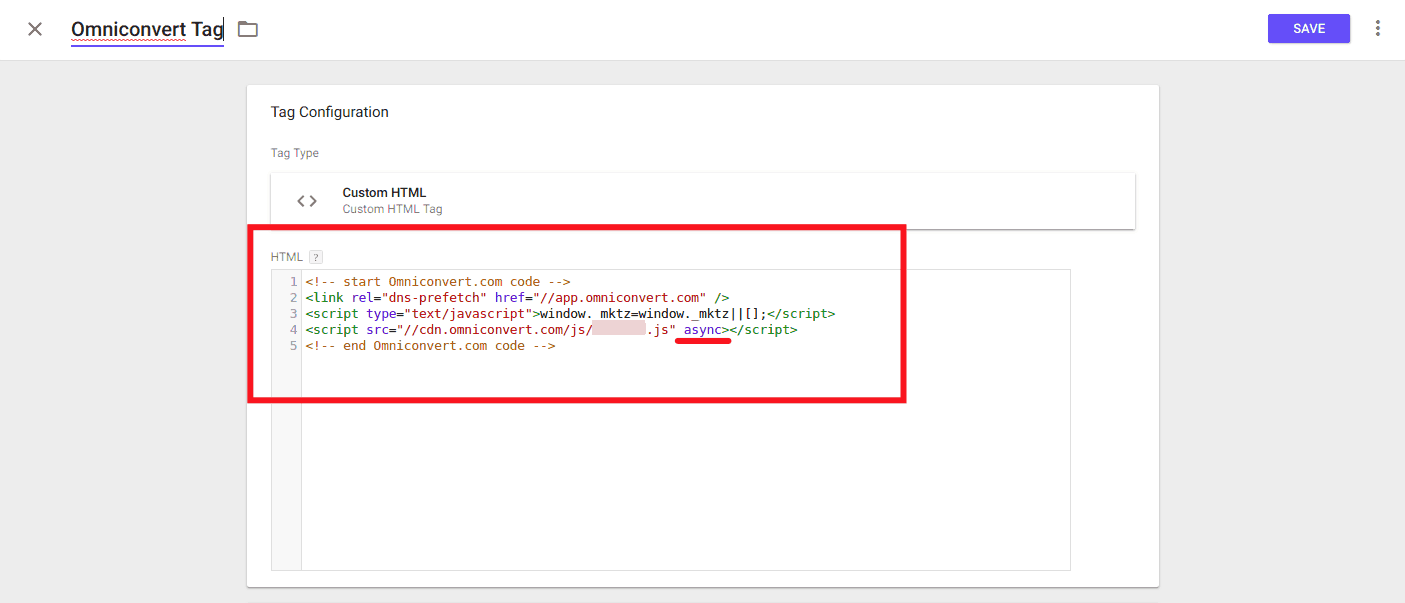
Click Tag Configuration and select Custom HTML.
-
Paste your Omniconvert Explore tracking code into the HTML field.
-
Under Triggering, select All Pages - or a specific set of pages if you only want Explore to run on certain URLs.
-
Name the tag (for example, Omniconvert Explore) and click Save.

Step 3 - Publish your container
Once your tag is saved, click Submit in GTM to publish the changes to your live website.
To verify the installation, return to the Tracking Code panel in Explore. The platform will attempt to detect the code and confirm it is active.
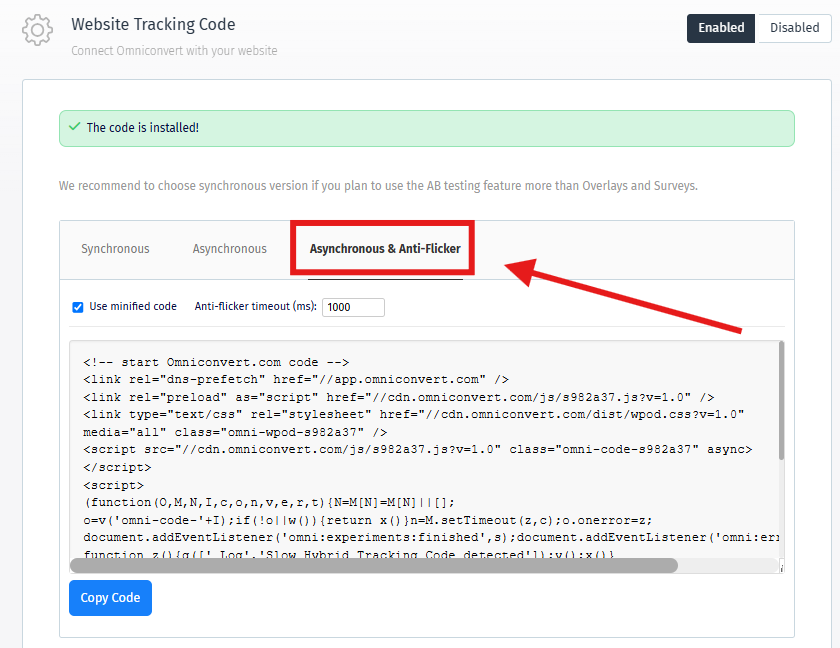
If the code is not detected, see Tracking Code Not Detected in Troubleshooting.
Handling flickering
Because GTM loads scripts asynchronously, there is an inherent risk of flickering in A/B tests. There are two ways to address this.
Option 1 - Use the anti-flicker snippet
The anti-flicker option does not work when the tracking code is loaded through GTM. If flickering is a real concern for your experiments, use Option 2 below instead.
Option 2 - Install the synchronous code directly
If flickering is a significant concern and you have access to your website's source code, consider installing the synchronous tracking code directly in the <head> tag instead of through GTM. This guarantees the code runs before the page renders and eliminates flickering entirely.
See Install the Tracking Code on Your Website for instructions.