
My experiment isn’t running. What to check?
Overview
You've set up your experiment, checked your website, and you don't see it. Work through this checklist in order - it covers the most common causes, from most to least frequent.
1. Tracking code installed


Make sure the tracking code is installed on the pages where you want to run the experiment.
-
Go to the page in your browser, right-click, and choose Inspect (or press
Ctrl+Shift+I, or use the 3-dot menu → More tools → Developer tools). -
Open the Console tab.
-
Type
_mktzand press Enter.

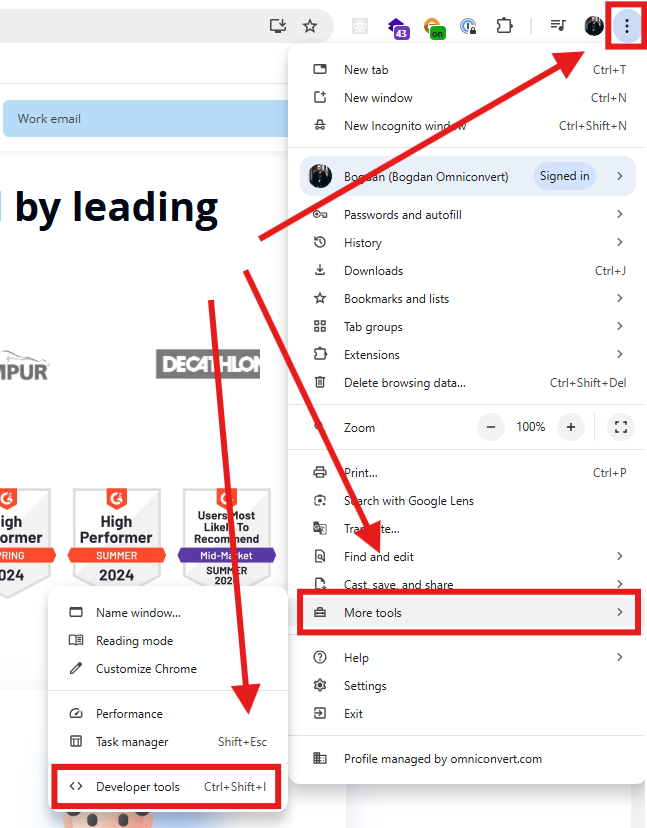
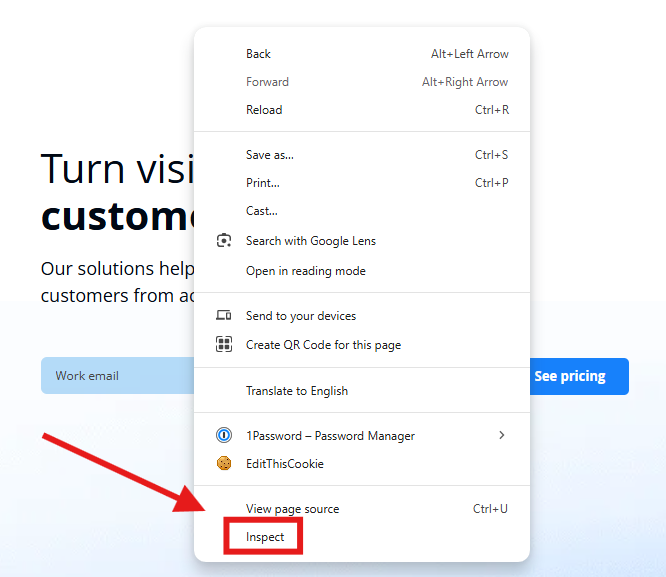
If a response comes back, the tracking code is installed. If you get an error like _mktz is not defined, the tracking code is missing.
2. Tracking code enabled
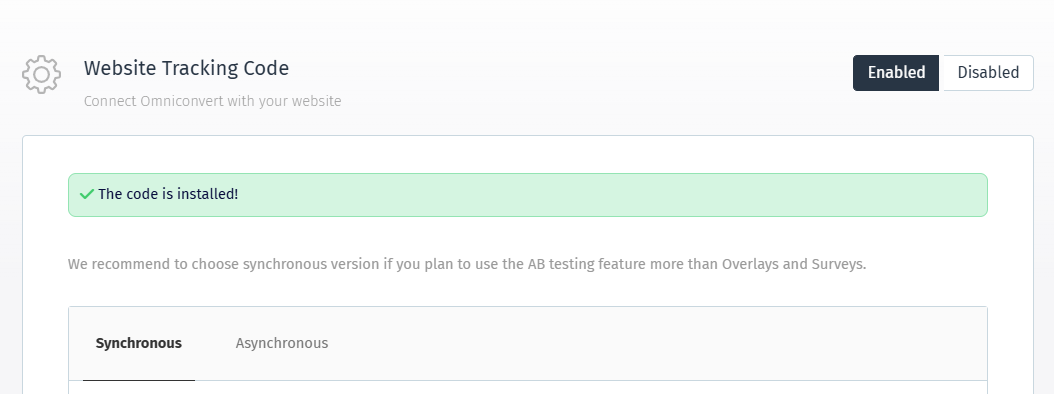
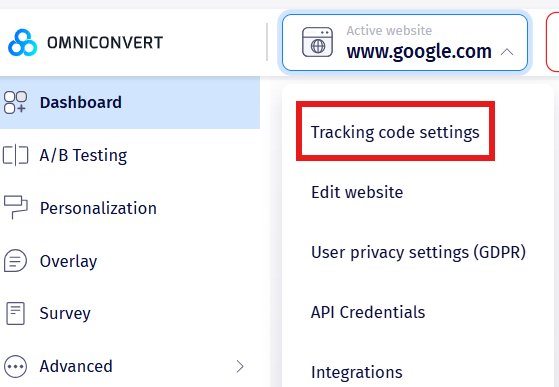
Click your website name to open the dropdown and select Tracking code settings. Confirm you see the text "The code is installed."
3. Plan usage
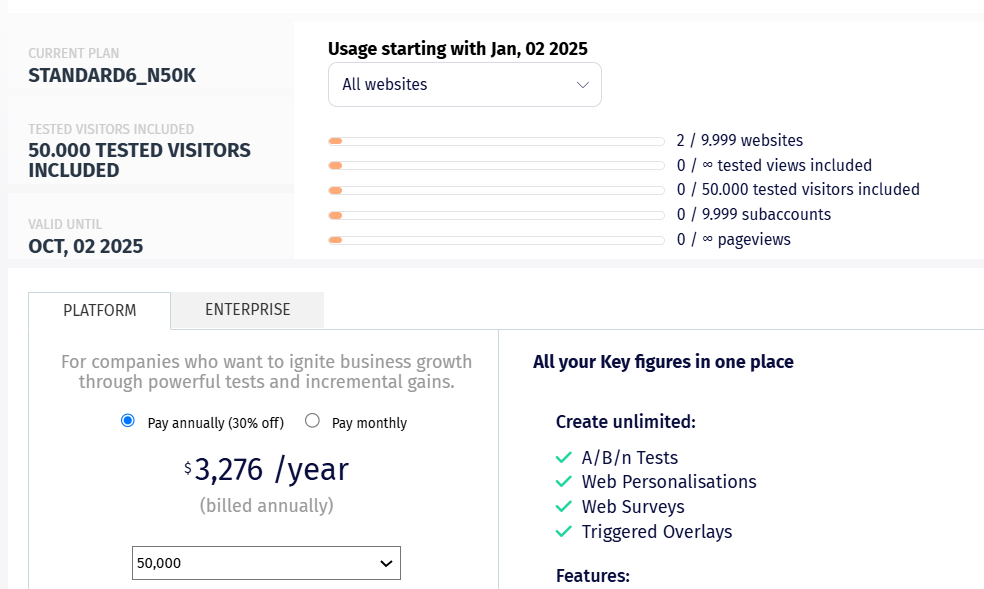
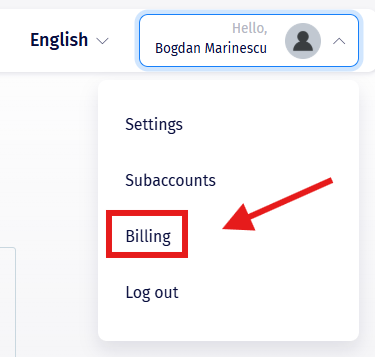
Make sure your plan hasn't expired or exceeded its Tested Visitor limit. Check this from Account → Billing, which shows your current usage and plan status.
See Configure Website Settings for how the Website Consumption Limit Control works if you manage multiple websites on one account.
4. Audience
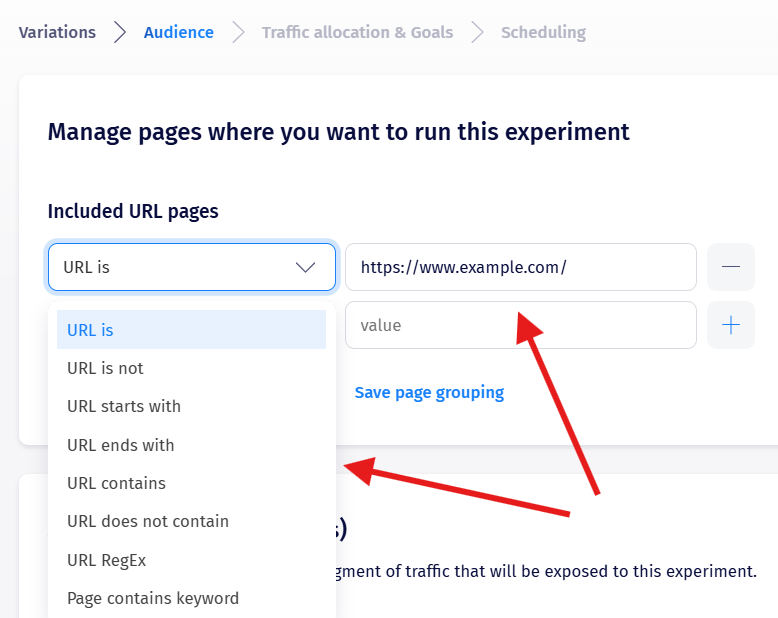
Check that you chose the right URL condition, and that it matches the actual browser URL of the page where the experiment should run. See Understand How Segmentation Works for the full guide, including the most common mistake (using URL is without accounting for UTM parameters).
5. Excluded URL pages
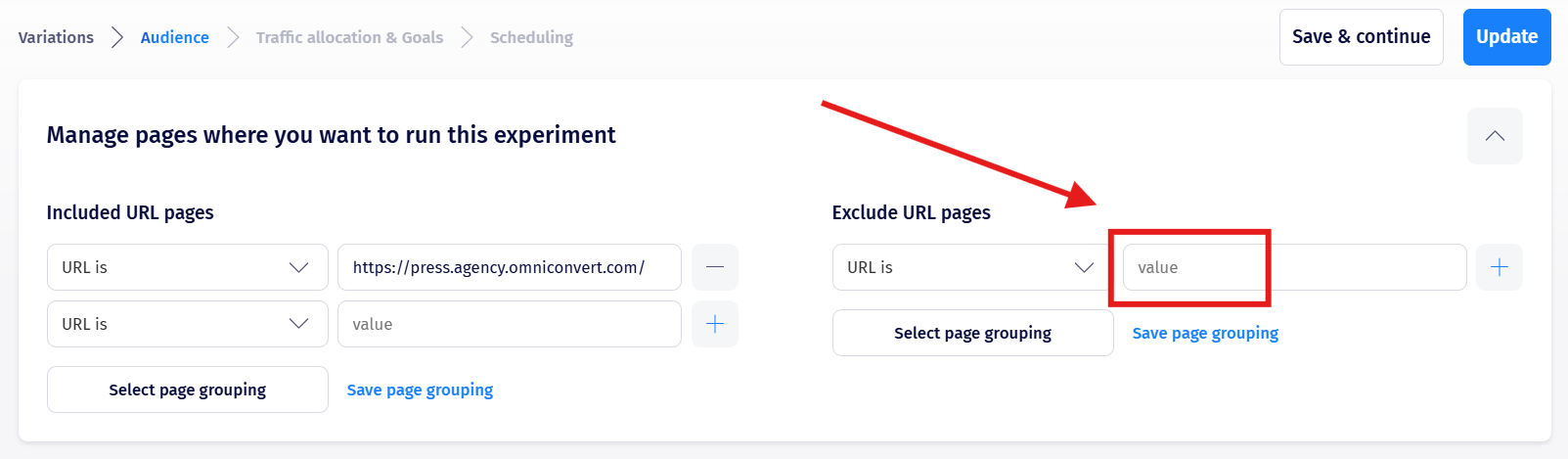
Make sure you haven't accidentally excluded the page(s) where you want your experiment to apply.
6. Segmentation
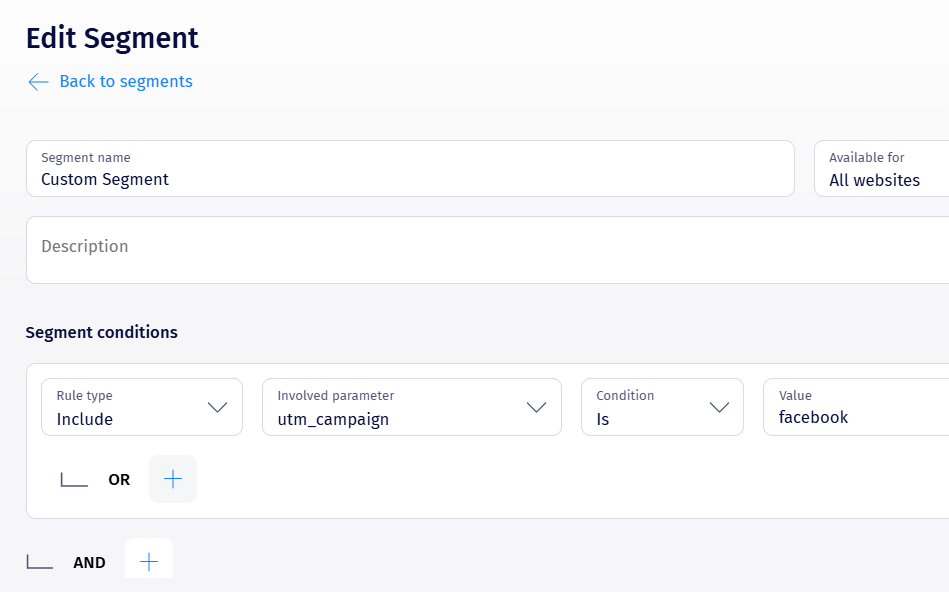
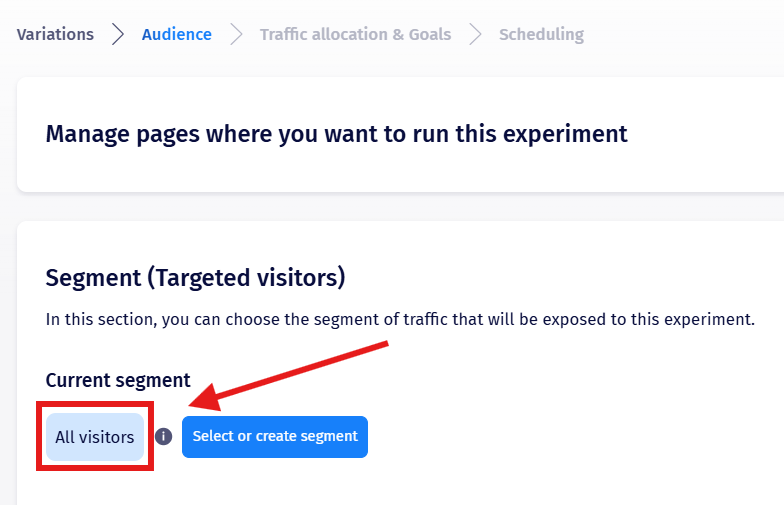
Make sure your segment is set up correctly. If you're using a custom segment, double-check the conditions - especially OR/AND logic, which is a common source of mistakes. See Understand How Segmentation Works.
7. Devices
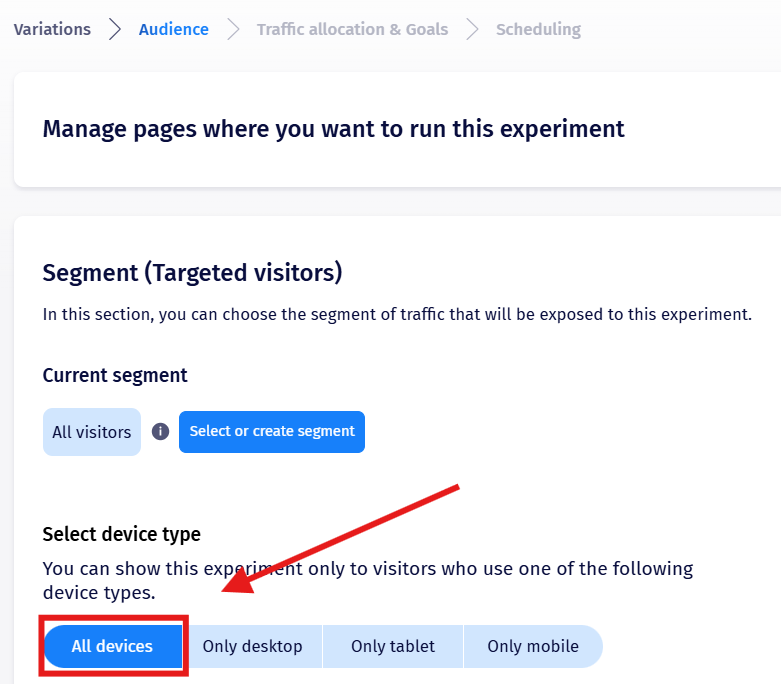
Make sure you're checking the experiment on a device type it's actually configured to run on.
8. Exclusivity
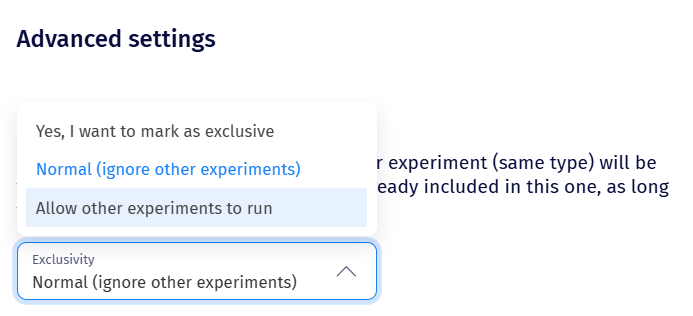
By default, no other experiment of the same type will trigger for a visitor already included in another experiment on the same page and segment, while that first experiment is running - see Understand Experiment Compatibility Rules for the full logic.
If you need multiple experiments to run for the same page and segment, contact Omniconvert support to have the Allow other experiments to run option enabled for your account.
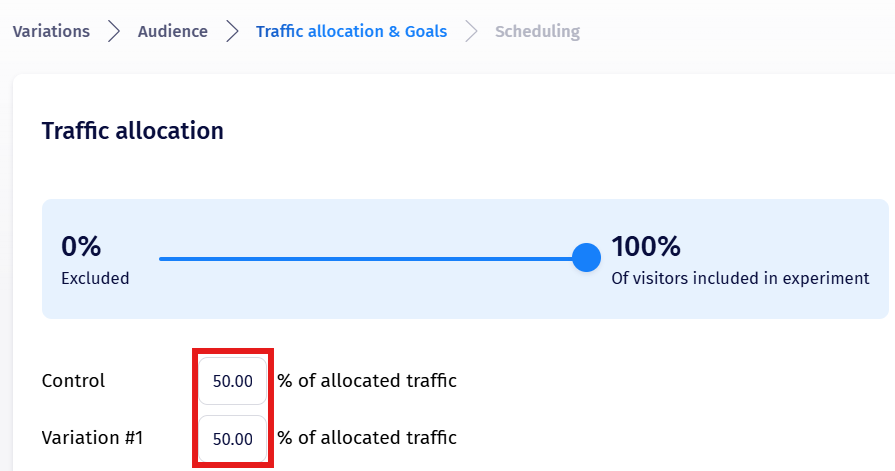
9. Traffic allocation and goals
Make sure the Variation actually has traffic allocated to it.
If you keep landing on the same variation every time, delete your cookies between sessions to get re-bucketed. For incognito tabs, fully close the tab (not just the window) before trying again.
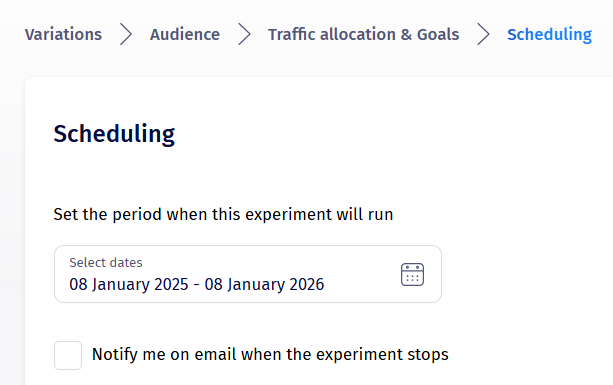
10. Scheduling
Make sure the experiment is active on the day you're checking it - and remember that scheduling is interpreted using your account's Display Timezone setting.
11. Excluded time interval
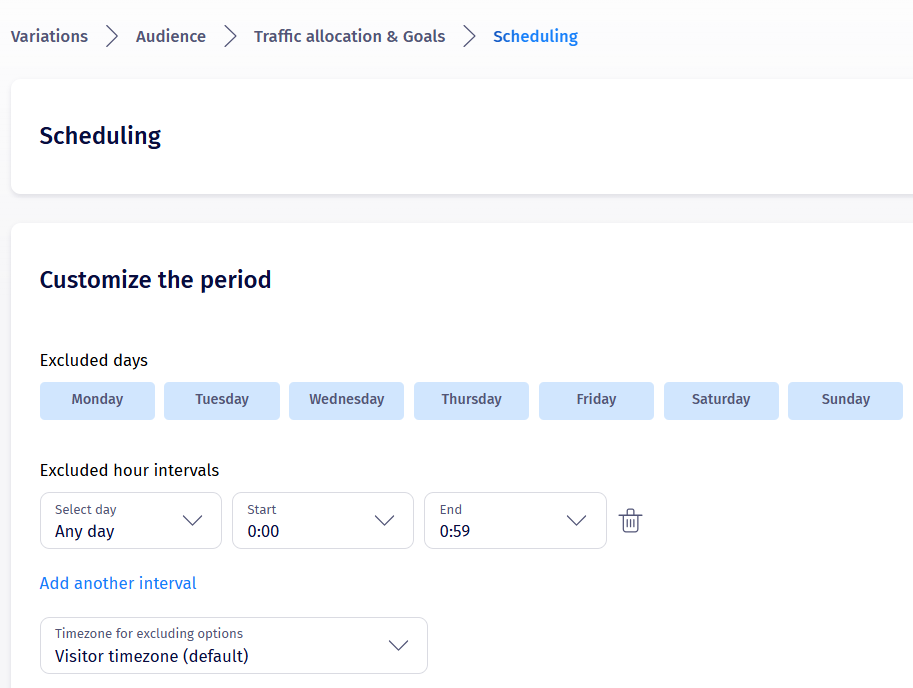
Make sure you're not checking during an excluded hours interval you've configured for the experiment.
12. Give it time
If you haven't waited 4-5 minutes since publishing, you're checking too early - it takes a short while for the change to reach the live servers.
Still not working?
If everything above checks out and the experiment still isn't showing, contact Omniconvert support with as many details as possible - which step you've already verified helps us get to a solution faster.