
Install the Tracking Code on Your Website
Overview
Before you can run experiments with Omniconvert Explore, you need to install the tracking code on your website. The tracking code is responsible for loading your experiment variations, applying changes to the page, and recording visitor and conversion data.
These instructions are for websites that are not on Shopify. If your store runs on Shopify, see Install on Shopify instead.
Step 1 - Find your tracking code
Log into your Explore account. If the tracking code has not been installed yet, you will see a "Tracking code is missing!" warning in the header. Click the Install button next to it.

Alternatively, you can access the tracking code at any time by clicking on your active website name in the header, then selecting Tracking Code.
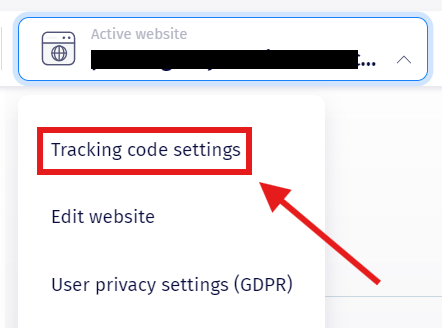
You will see a code snippet that is unique to your website. Click Copy to copy it to your clipboard.
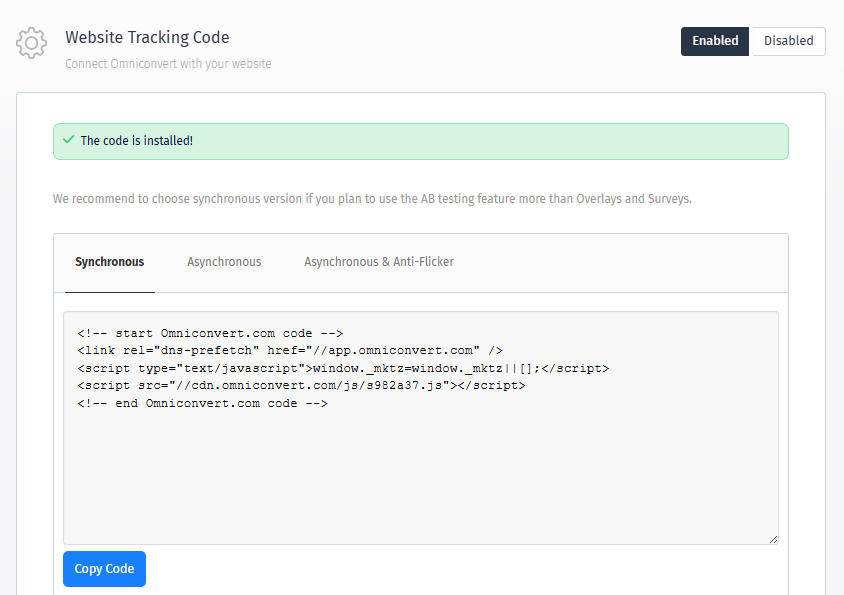
Step 2 - Paste the code into your website
Paste the tracking code as the first script inside the <head> tag of your website's HTML - before any other JavaScript files. It needs to be present on every page where you want to run experiments, collect data, or track goals.
The position of the code matters. Placing it too late in the page - for example at the bottom of <body> - can cause experiment variations to appear with a visible flash, or prevent them from loading at all.
Synchronous vs. Asynchronous loading
Explore gives you two versions of the tracking code.
Synchronous (recommended for A/B testing)
The page waits for the Explore code to finish loading before it renders. This eliminates most flicker when applying experiment variations. This is the default and the recommended option for most users.
Asynchronous
The code loads in parallel with the rest of the page, which means it does not delay page rendering. However, experiment variations may appear briefly after the original page has already loaded, causing a visible flash. Use this only if you have specific performance constraints and are not running visual experiments.
To switch to asynchronous loading, select the Asynchronous option in the tracking code panel.
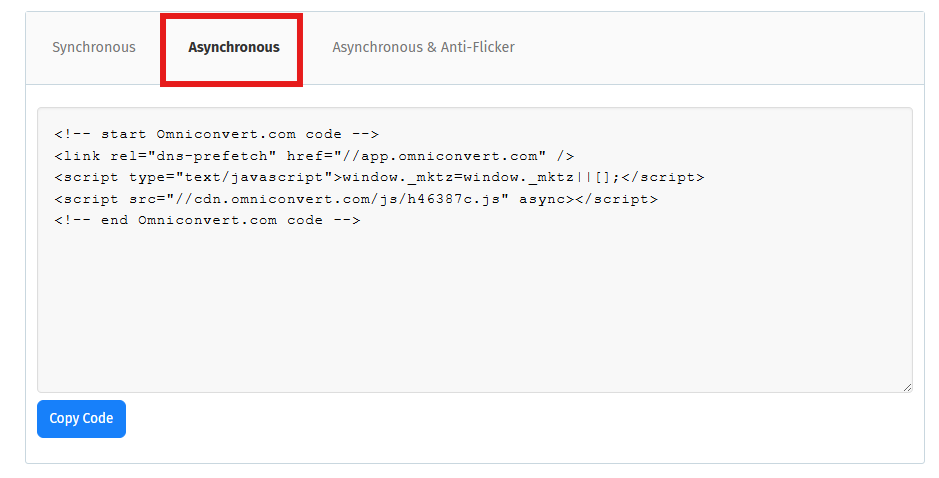
If you install the tracking code through Google Tag Manager, it will always load asynchronously regardless of this setting. See Install via Google Tag Manager for how to handle this.
Anti-flicker settings (async only)
If you need to use the asynchronous code but want to prevent experiment variations from flashing before they are applied, you can use the Asynchronous + Anti-flicker version. This temporarily hides the page until Explore has finished loading and applied your changes.
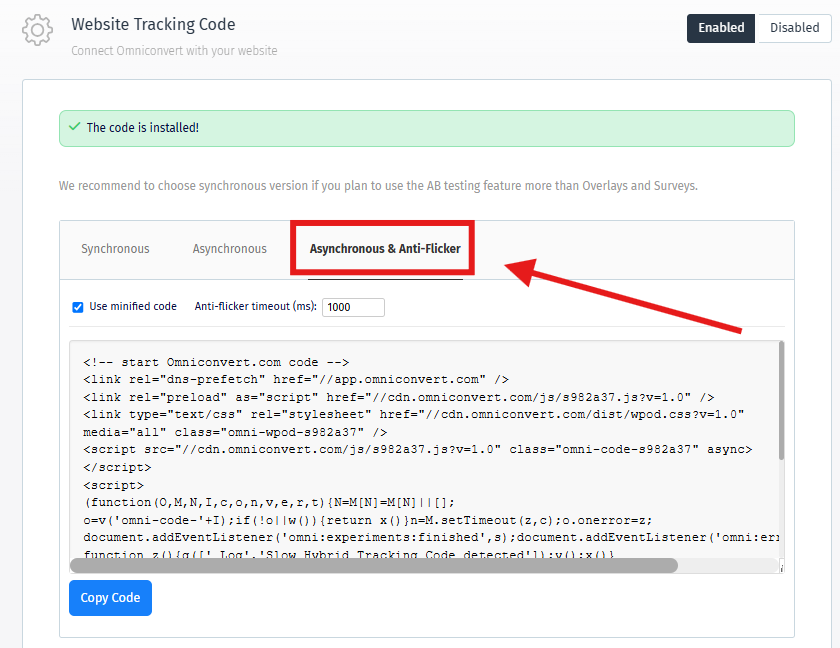
The anti-flicker option only works when the tracking code is installed directly on your website. It does not work when loading through Google Tag Manager.
This comes with two options:
-
Minified code - Enabled by default. Produces a compressed version of the code. Disable this only if you need to read or edit the code manually.
-
Anti-flicker timeout - The number of milliseconds the page stays hidden while waiting for Explore to load. The default is 1000ms (1 second). If Explore does not finish loading within this time, the page will be shown regardless. Setting this too low may result in flicker on slower connections; setting it too high may cause visitors to see a blank page.
Don't confuse this with Loading Tolerance, a separate setting found in Configure Website Settings. Anti-flicker controls how long the page stays hidden while waiting for Explore. Loading Tolerance is a failsafe on the tracking code itself - if it's exceeded, the tracking code stops entirely for that page load, meaning no experiments, no data, nothing.
Cross-domain tracking
If your website spans multiple subdomains - for example domain.com and shop.domain.com - you need cross-domain tracking to ensure visitors are correctly identified as they move between them.
To set it up:
-
Install the same tracking code from your main domain on all subdomains. Do not add each subdomain as a separate website in Explore - this creates separate tracking codes and breaks visitor identification.
-
Contact Omniconvert support via chat or email and request cross-domain tracking to be enabled. You only need to provide your main domain - not a list of subdomains.
Enabling cross-domain tracking deletes the mktz cookies that record which experiment variation a visitor has been assigned to. Any visitors currently active in running experiments will lose their variation assignment and be randomly re-bucketed. For this reason, cross-domain tracking should be set up before you launch experiments, not while they are running.
Without cross-domain tracking enabled, a visitor moving from your main domain to a subdomain is treated as a brand new visitor. They may be assigned to a different variation than before, which corrupts your experiment data.
Step 3 - Verify the installation
Once you have pasted the code and published your website, return to the tracking code panel in Explore. The platform will attempt to detect the script on your website and confirm it is active.
If the platform reports that the code is not detected even after you have installed it, this is often caused by a Content Security Policy (CSP) blocking the script. See Tracking Code Not Detected in Troubleshooting for how to identify and fix this.