
Install on Shopify
Overview
There are two ways to install Omniconvert Explore on a Shopify store. Which one you should use depends on what you're planning to do.
Which method should you choose?
Method 1: Install the Shopify App (Automatic)
-
Required if you plan to use Shopify Price Testing.
-
Automatically installs the tracking code in Asynchronous mode.
-
Automatically installs the Custom Pixel, which tracks Sale conversions.
-
Does not support multi-currency stores. If your store sells in more than one currency, use Method 2 instead.
Method 2: Direct Integration (Manual)
-
Involves pasting code directly into your theme.
-
Supports Synchronous installation, which is recommended for A/B testing since it avoids the flicker effect.
-
Requires manually creating the Custom Pixel to track Sale conversions.
-
Works correctly for multi-currency stores.
If you want to use the app (Method 1) but still prefer the Synchronous version of the code, this is possible with a workaround covered at the end of this article.
If you're not sure about the difference between Synchronous and Asynchronous, see Install the Tracking Code on Your Website.
If you've already integrated Explore manually and later decide to install the app (or vice versa), don't run both at once. This creates a duplicate website entry in Explore and causes tracking conflicts. Contact support if you're switching methods.
Method 1: Install the Shopify App
Step 1 - Install the app
Go to the Shopify App Store and search for Omniconvert AB Testing + CRO, or go directly to our app page.
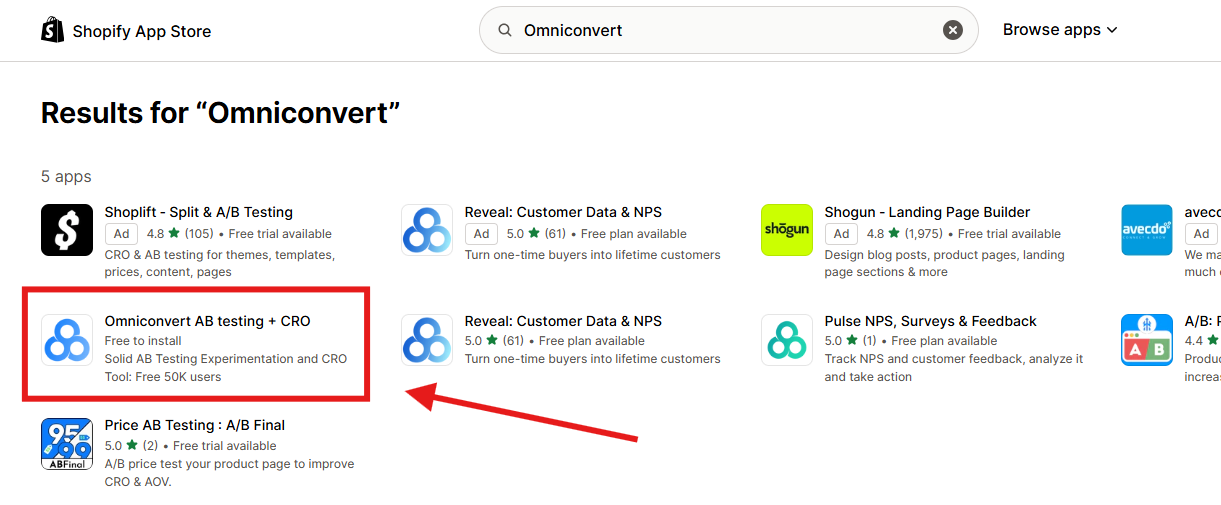
Click Add app, then confirm the installation in your Shopify admin.
Once installation finishes, you'll see an Installation successful screen, confirming the app is ready to use.
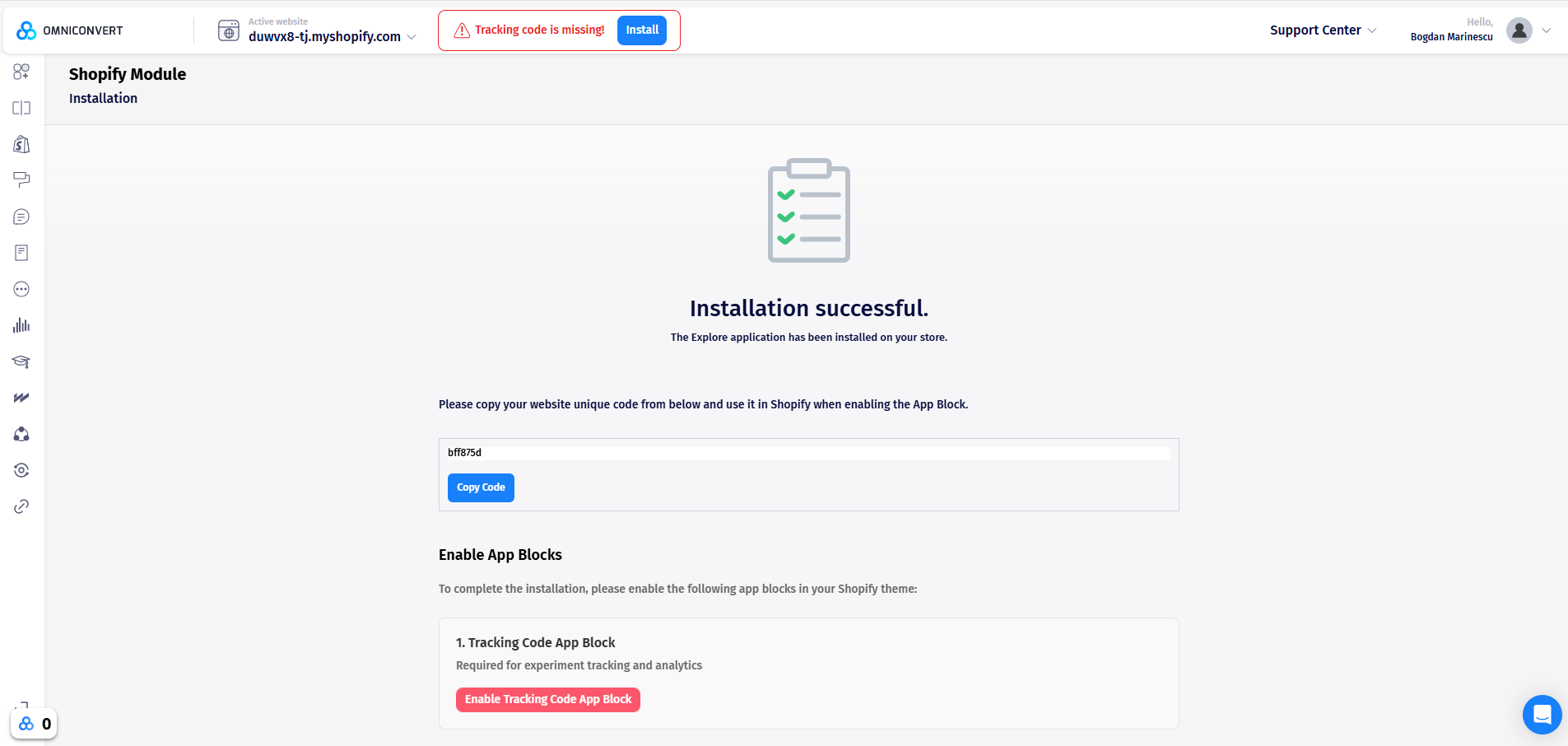
Step 2 - Enable the Tracking Code App Block
This is the most important step. Without it, the tracking code won't load and nothing else in Explore will work.
-
Copy the code shown on the post-install screen.
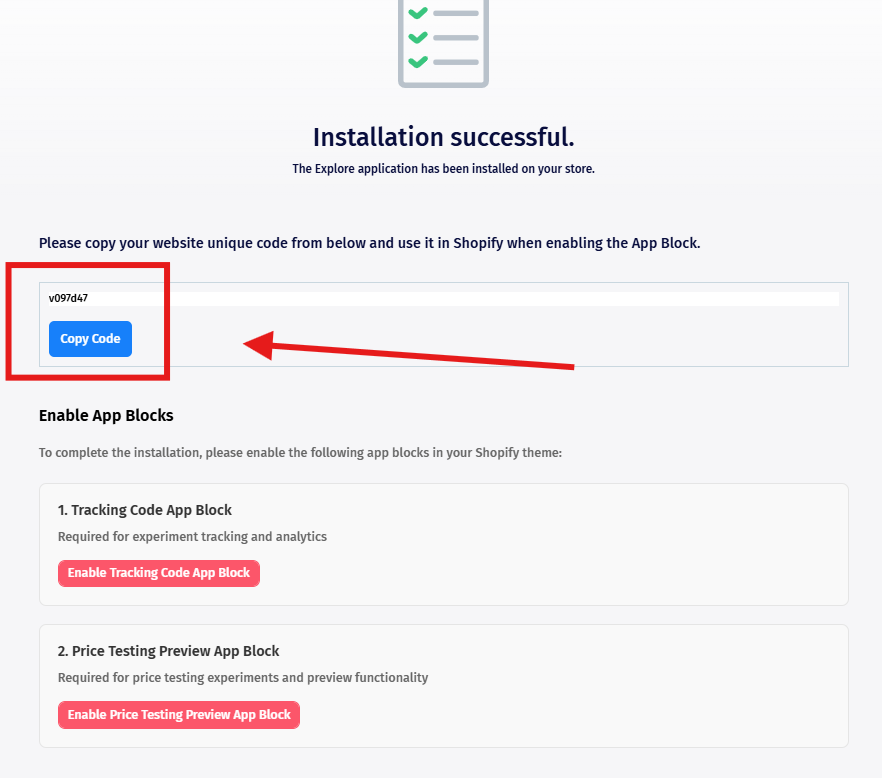
-
Press Enable Tracking Code App Block. This takes you to your Shopify theme editor.
-
Paste the code you copied, and make sure the Explore Tracking Code toggle is switched on.
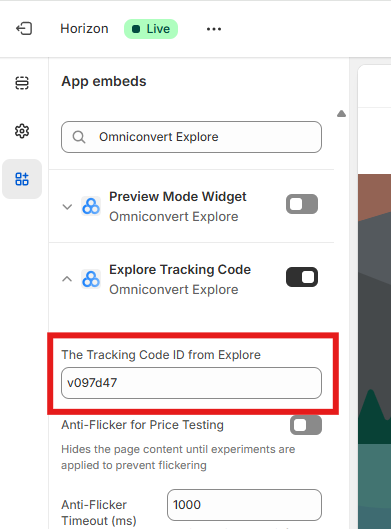
-
Press Save in the top right corner.
Step 3 - Enable Price Testing Preview (optional, recommended for Price Testing)
If you're planning to run Price Testing experiments, this step lets you preview price changes before they go live.
-
Enable the Price Testing Preview app block.
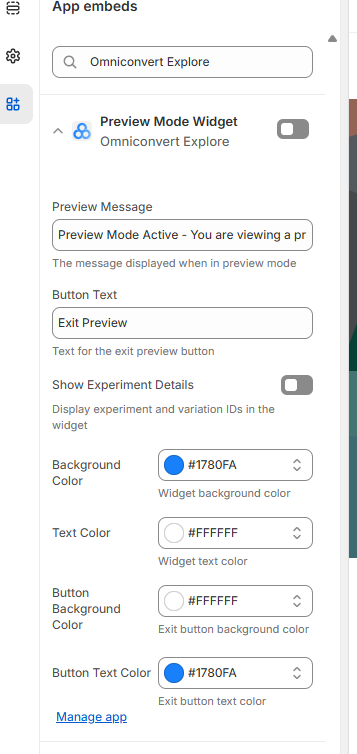
-
Once active, an "App Embed" indicator appears on your storefront, letting you know you're in test mode.
-
Press Save to confirm.
Step 4 - Verify the installation
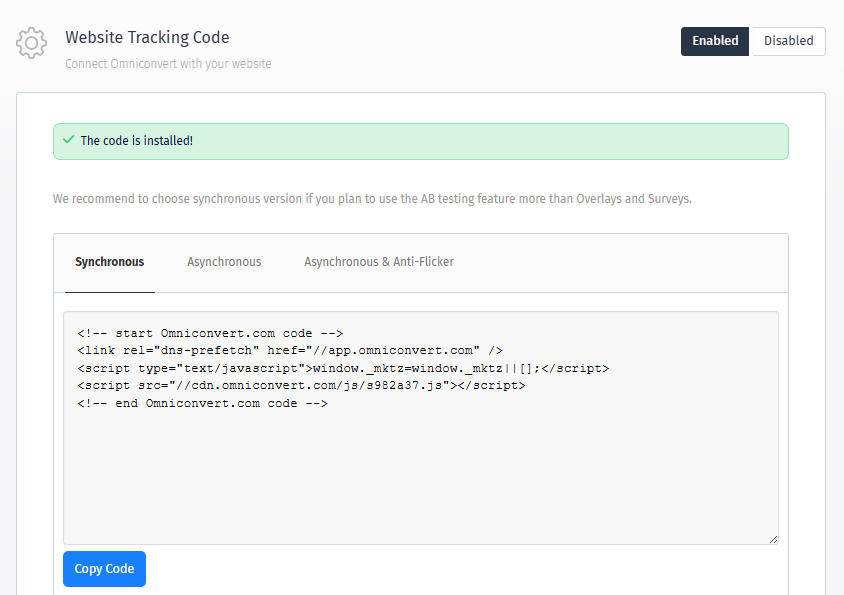
Return to your Explore account and check the Tracking Code panel. It should confirm the code is detected and active.
Method 2: Direct Integration (Manual)
Step 1 - Get your tracking code
Log into Explore and click Install in the header, or click your active website name and select Tracking Code. Make sure Synchronous is selected, then copy the code.
Step 2 - Add the code to your theme
-
In your Shopify admin, go to Online Store → Themes.
-
Click the three dots (⋯) next to your active theme and select Edit code.
-
In the file list, open Layout → theme.liquid.
-
Find the opening
<head>tag and paste the Omniconvert tracking code immediately after it, before any other scripts.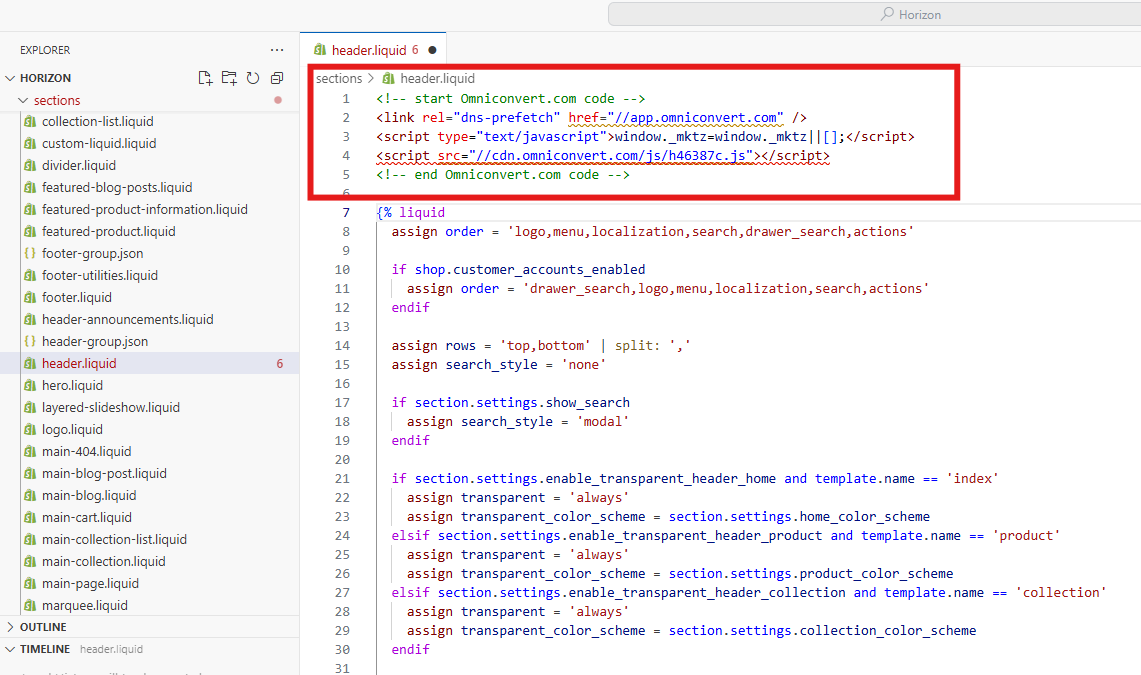
-
Click Save.
The tracking code must come before any other scripts in <head>. Placing it later can cause flickering or prevent experiments from loading correctly.
Step 3 - Verify the installation
Return to the Tracking Code panel in Explore to confirm detection.
Workaround: Using the app with synchronous code
If you want the convenience of the app but need synchronous loading to avoid flicker:
-
Install the app as described in Method 1, Step 1.
-
In your theme editor, disable the Tracking Code App Block instead of enabling it.
-
Follow Method 2, Step 2 to add the synchronous tracking code manually to
theme.liquid.
This gives you the app's other benefits (like automatic Custom Pixel setup) while keeping synchronous loading for your experiments.
Sale goal tracking (Custom Pixel)
If your store uses Checkout Extensibility - the default for all new Shopify stores and required for Shopify Plus - you'll need the Omniconvert Custom Pixel to accurately track Sale goal conversions at checkout, regardless of which method above you used.
See Track Sales on Shopify (Custom Pixel) for full setup instructions.