
Integrate with SharpSpring (via Zapier)
Overview
Leads collected through your Explore Overlays or Survey lead collector can be sent into SharpSpring for use in your marketing campaigns, via a Zapier connection.
Step 1 - Set up the trigger
-
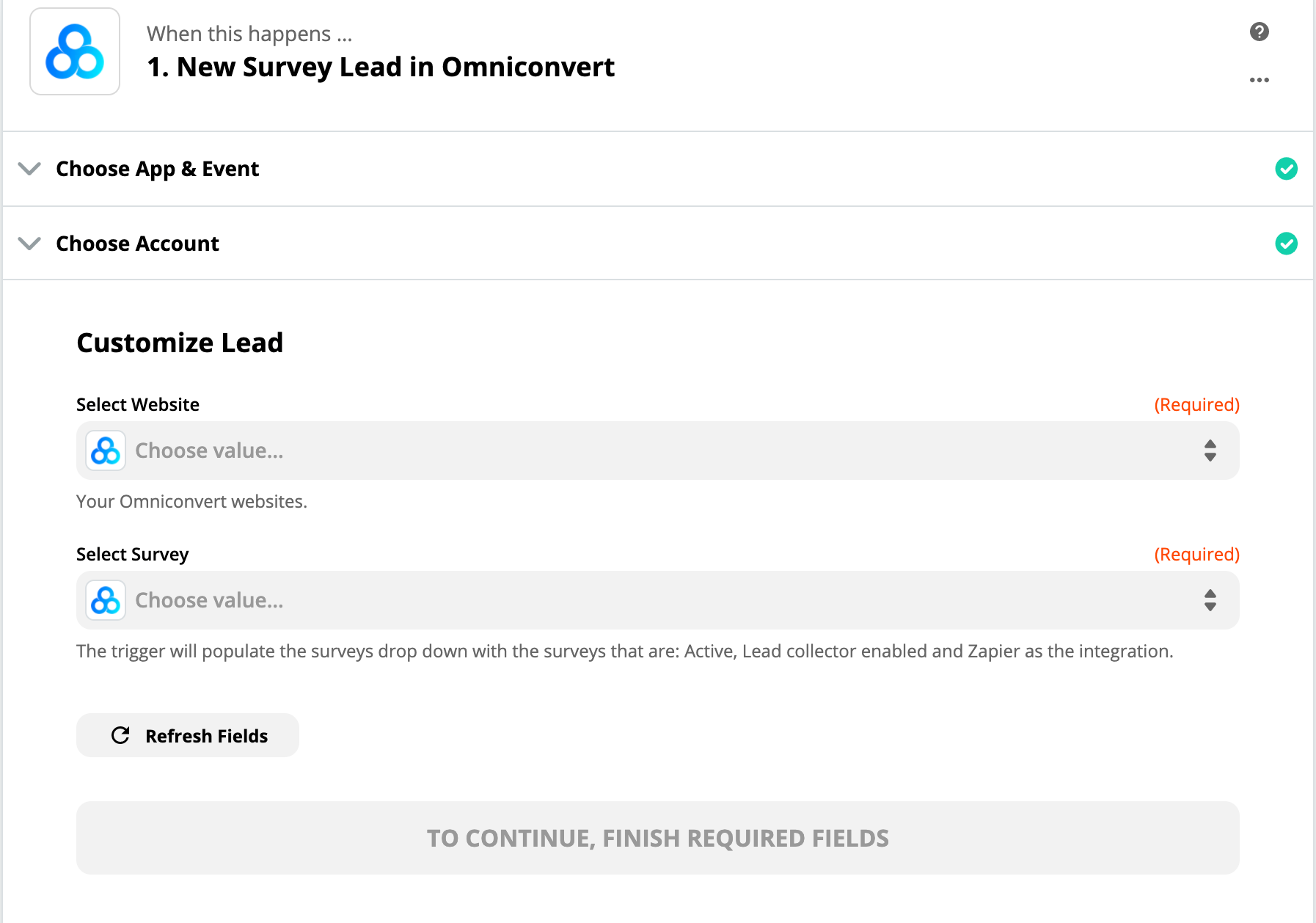
In Zapier, choose Omniconvert from the app list.
-
Choose the trigger: New Survey Lead (for surveys) or New Interaction Lead (for overlays), then press Continue.
-
Connect your account using your Omniconvert API Key (found in your Explore account) and the email address used to create it.
-
Select the website URL where your survey/overlay is live, then select the specific survey/overlay.
-
Test the trigger to confirm it's working.
Step 2 - Connect with SharpSpring
-
For the Action, choose SharpSpring.
-
Select Create/Update Lead and press Continue.
-
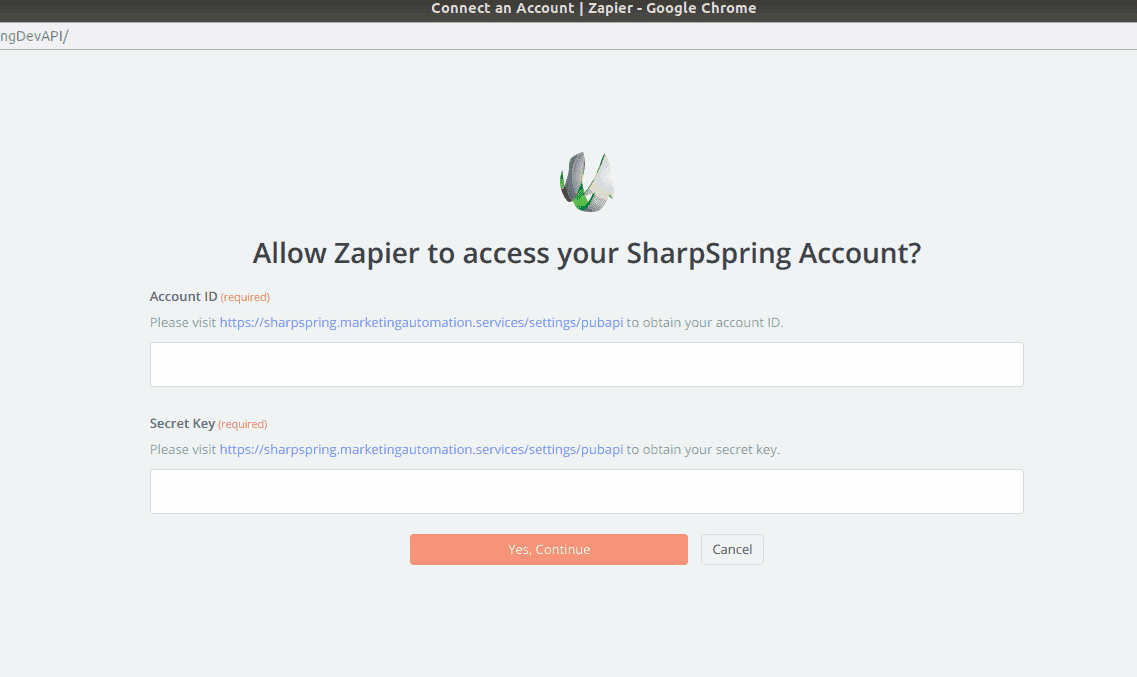
Choose Connect an account.
-
Fill in the Account ID and Secret Key.
NoteFind these in SharpSpring under Settings → SharpSpring API → API Settings.
-
Test the integration and press Save and Continue.
-
Set up your SharpSpring Lead template.
-
Test the step - a green confirmation should appear showing the test lead was sent. Press Finish.
-
Turn on the Zap.
Once active, leads from your survey/overlay are automatically sent into your SharpSpring database.