Integrate with Google Analytics 4
Overview
Integrating Explore with Google Analytics 4 lets you track experiment details directly in the GA4 interface. Each time a visitor enters an experiment, a custom GA4 event named Omniconvert fires, with two event parameters:
-
Exp_Name- the experiment's name. -
Exp_Var- the variation's name.
These need to be defined as custom dimensions in GA4 to appear in your reports.
This is a separate, native integration from Send Events to GA4 via DataLayer, which uses GTM instead. Use whichever fits your setup - don't run both simultaneously, or you'll double your GA4 events.
Before you begin
-
You have an active GA4 property for your website.
-
The Explore tracking code is already installed.
Step 1 - Configure the integration
-
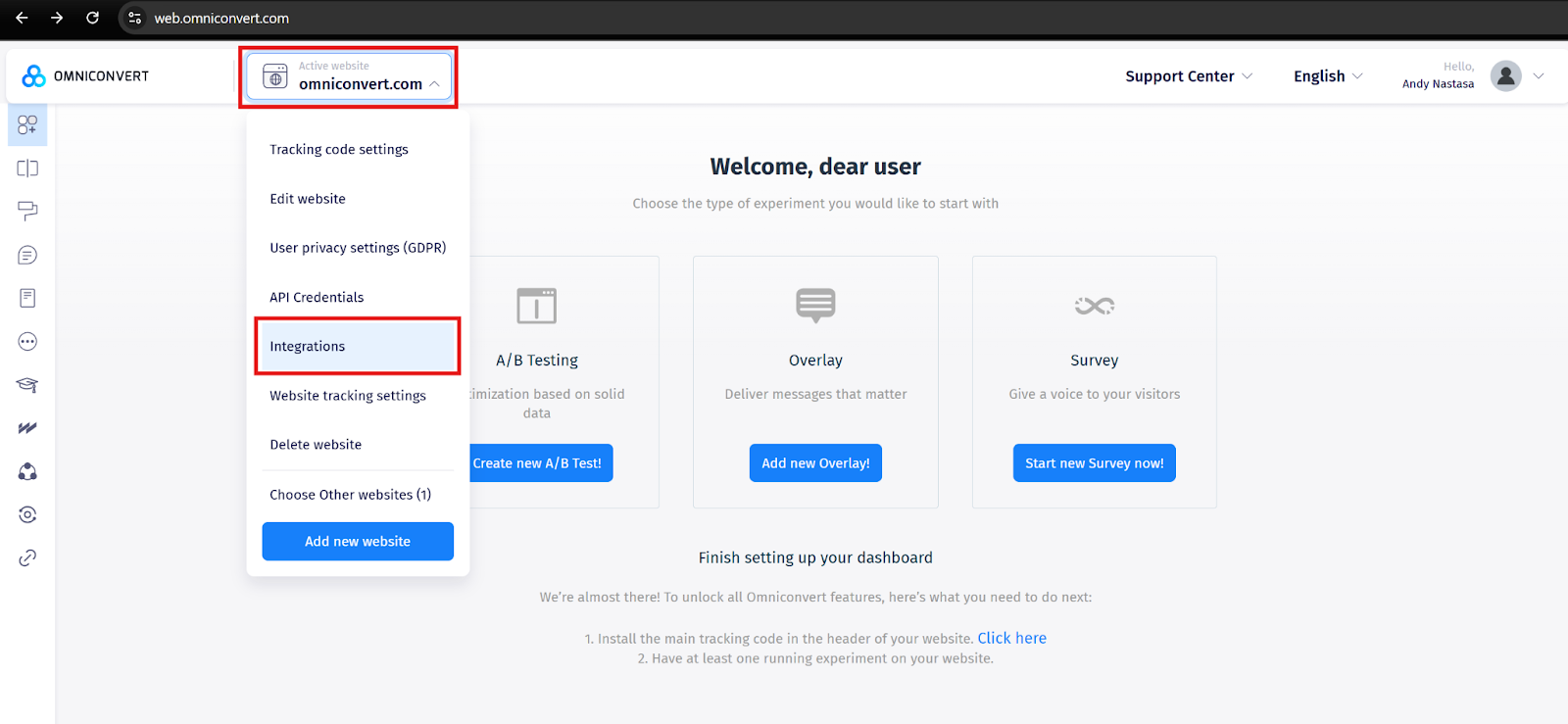
Click your website name to open the dropdown, then select Integrations.
-
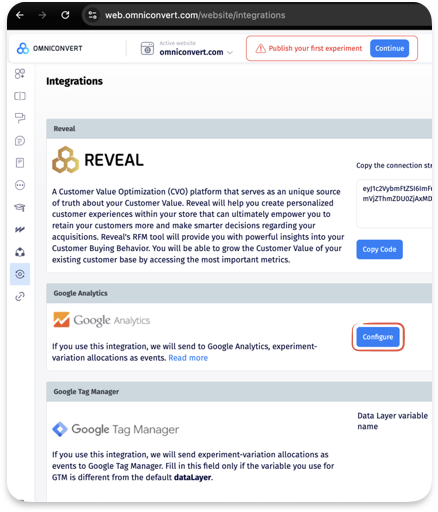
Click Configure next to Google Analytics.
Step 2 - Choose your integration type
Two options are available:
-
Client-Side (Default) - use this if you're not running Split URL tests. Explore auto-detects every GA4 Measurement ID on your site and sends data to all of them.
-
Server-Side - use this if you're running Split URL Tests, or if you want to send data to only one specific GA4 property.
Client-Side
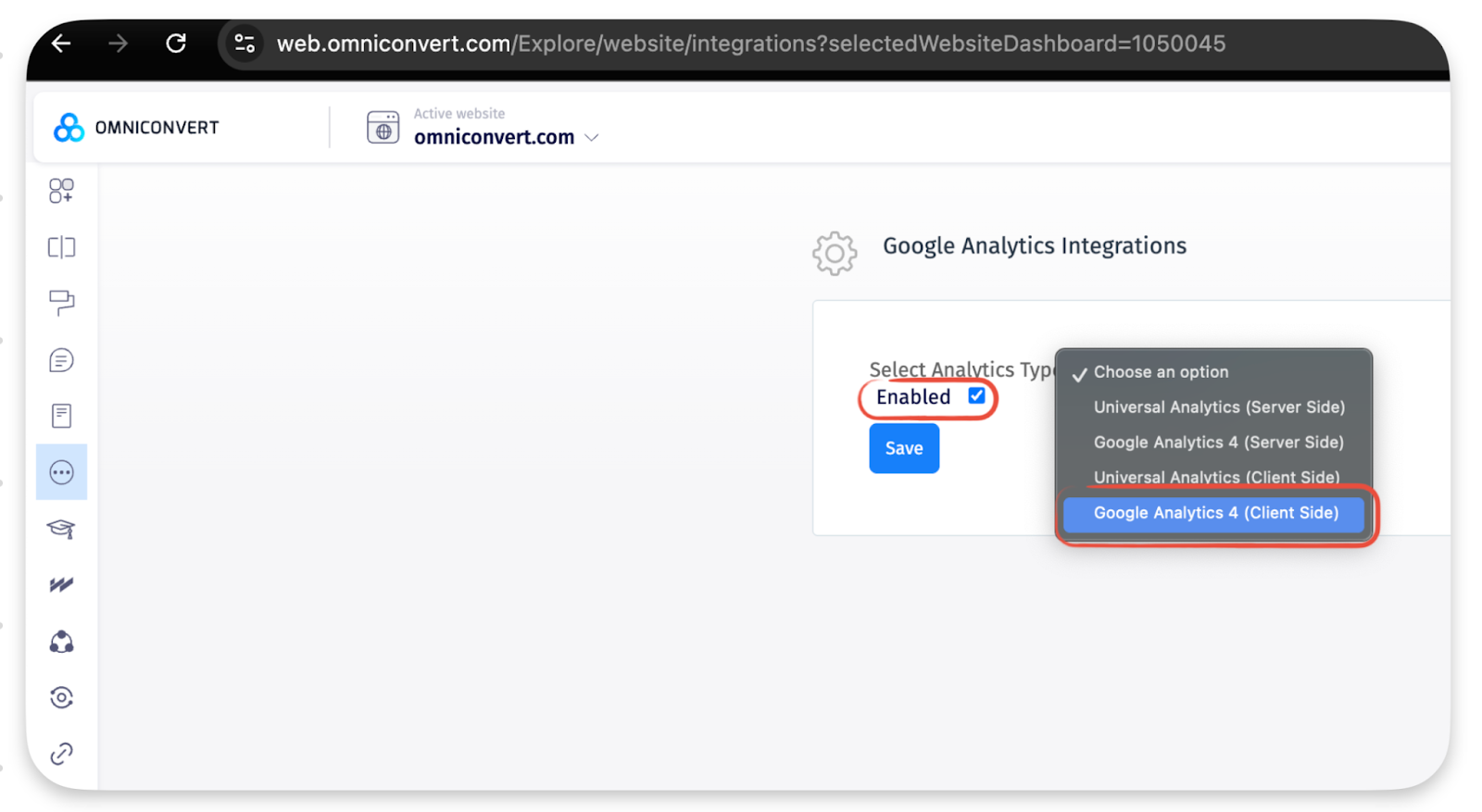
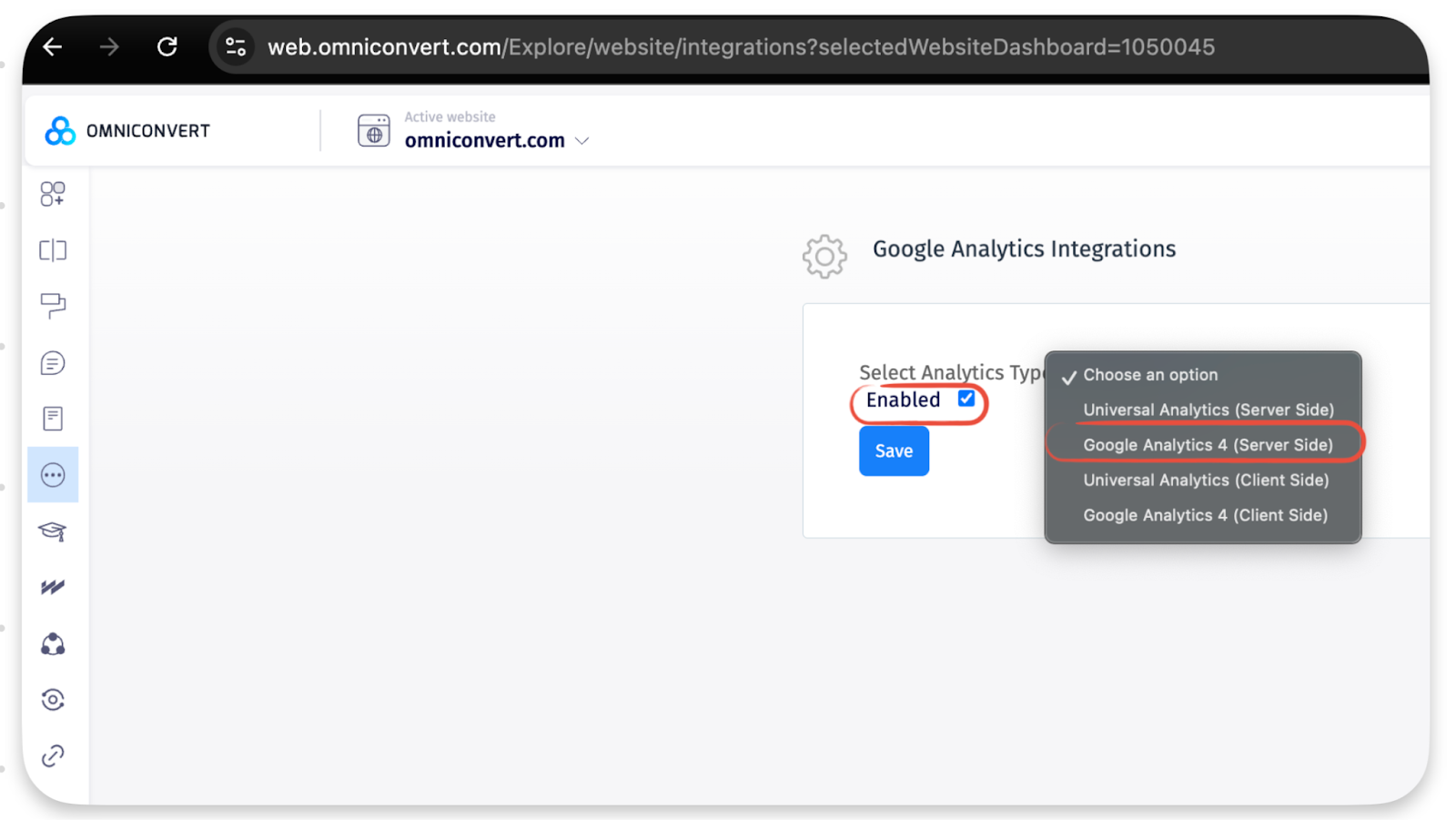
Check Enabled, then select Google Analytics 4 (Client Side) from the dropdown. Explore automatically detects and sends data to all GA4 Measurement IDs found on your site.
Server-Side
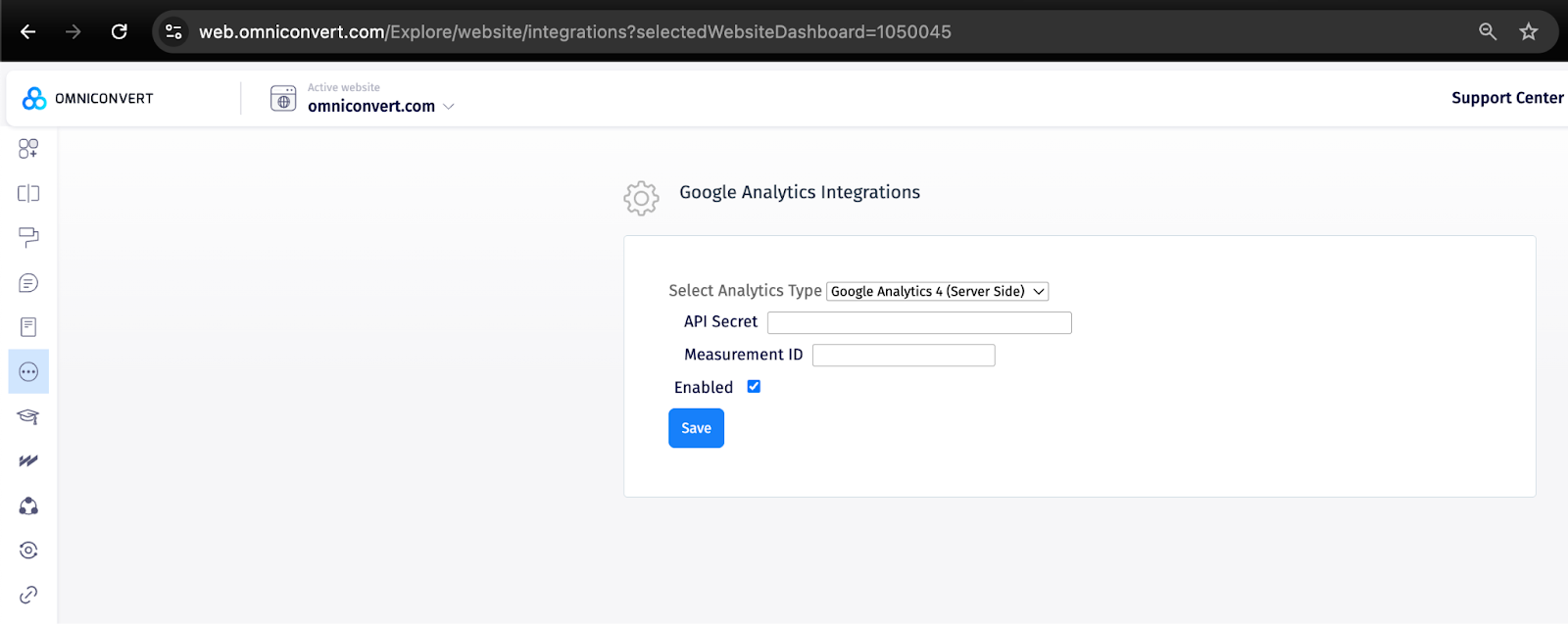
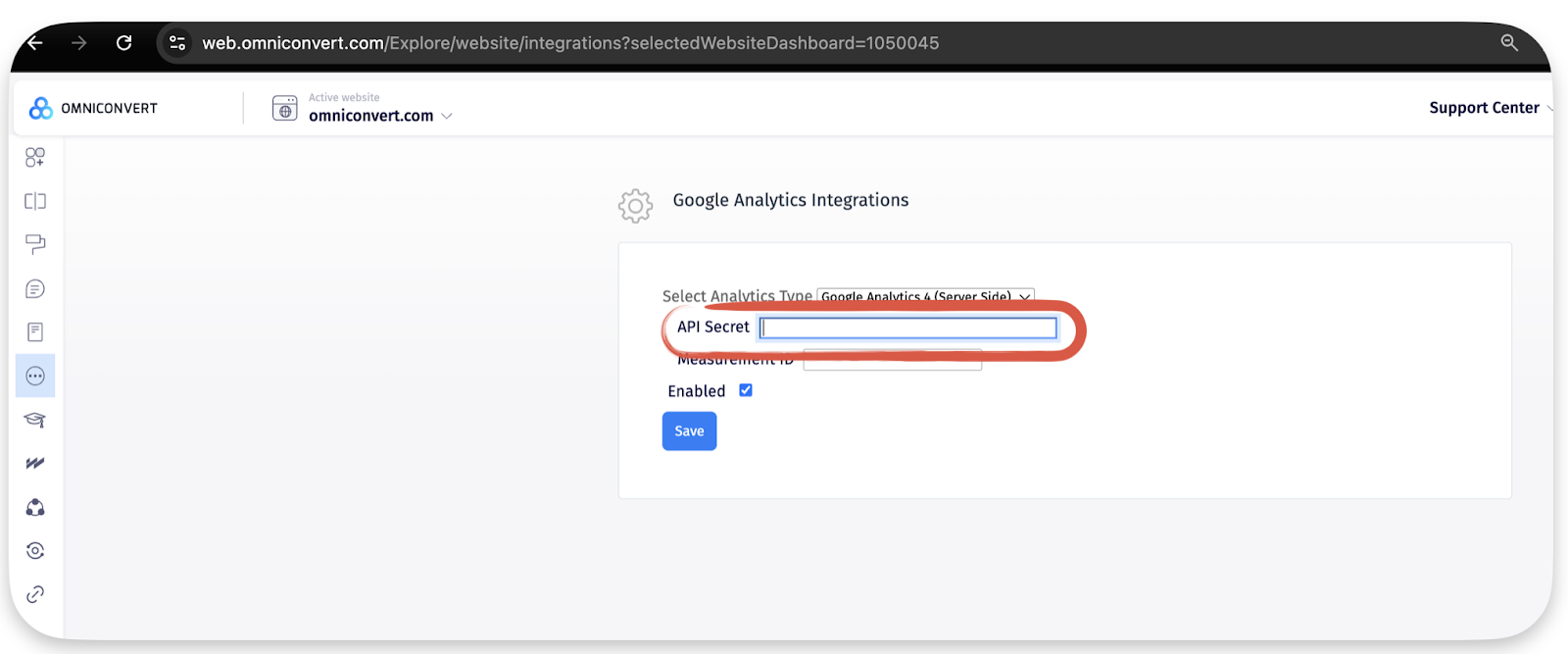
After enabling the integration, select Google Analytics 4 (Server Side) from the dropdown. This requires additional setup, covered below.
Setting up Server-Side (Measurement ID and API Secret)
The Server-Side integration needs two values from your GA4 property: the Measurement ID and the API Secret.
Obtaining the Measurement ID
-
Go to your Google Analytics account.
-
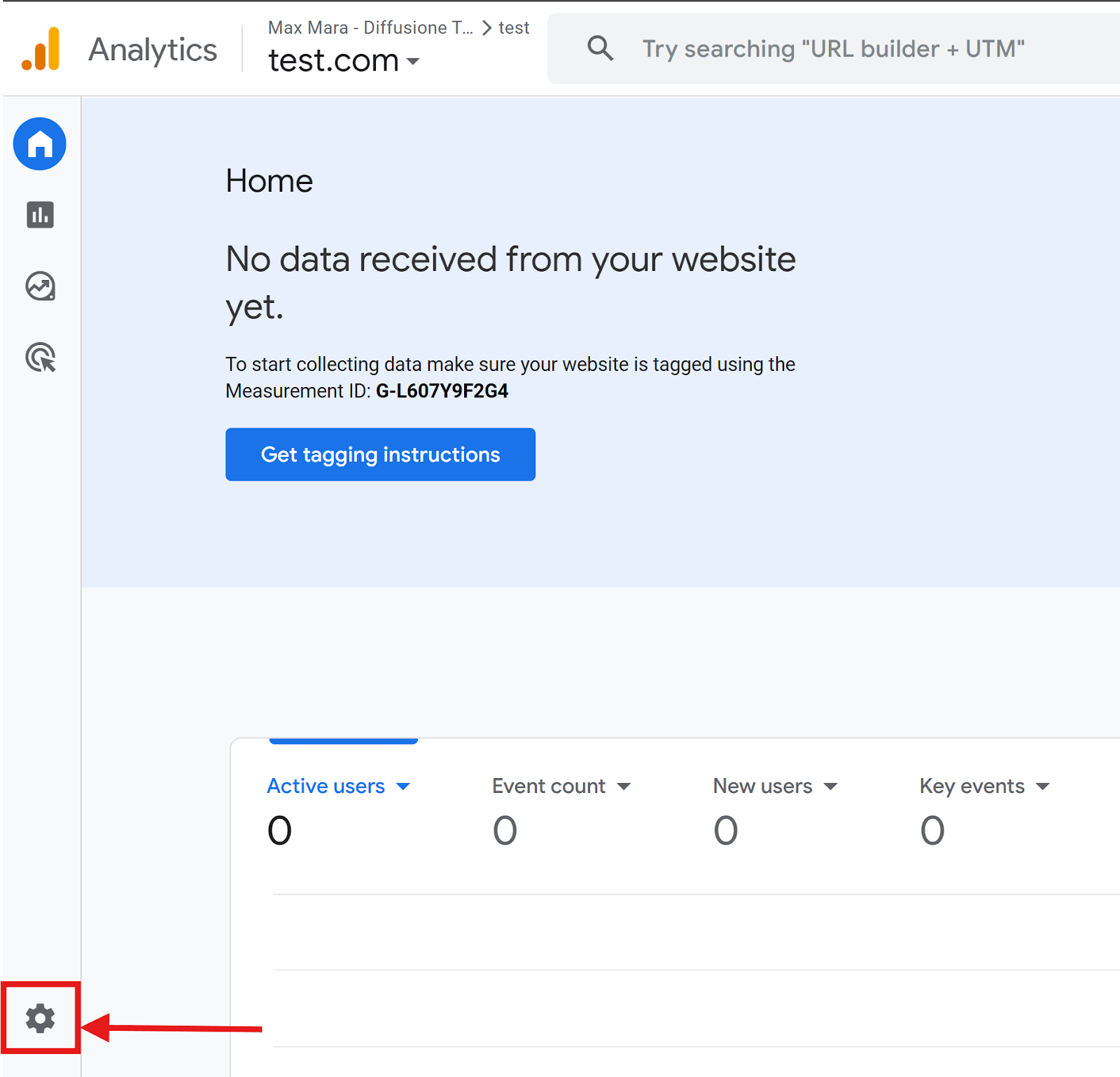
Open Admin via the cog icon.
-
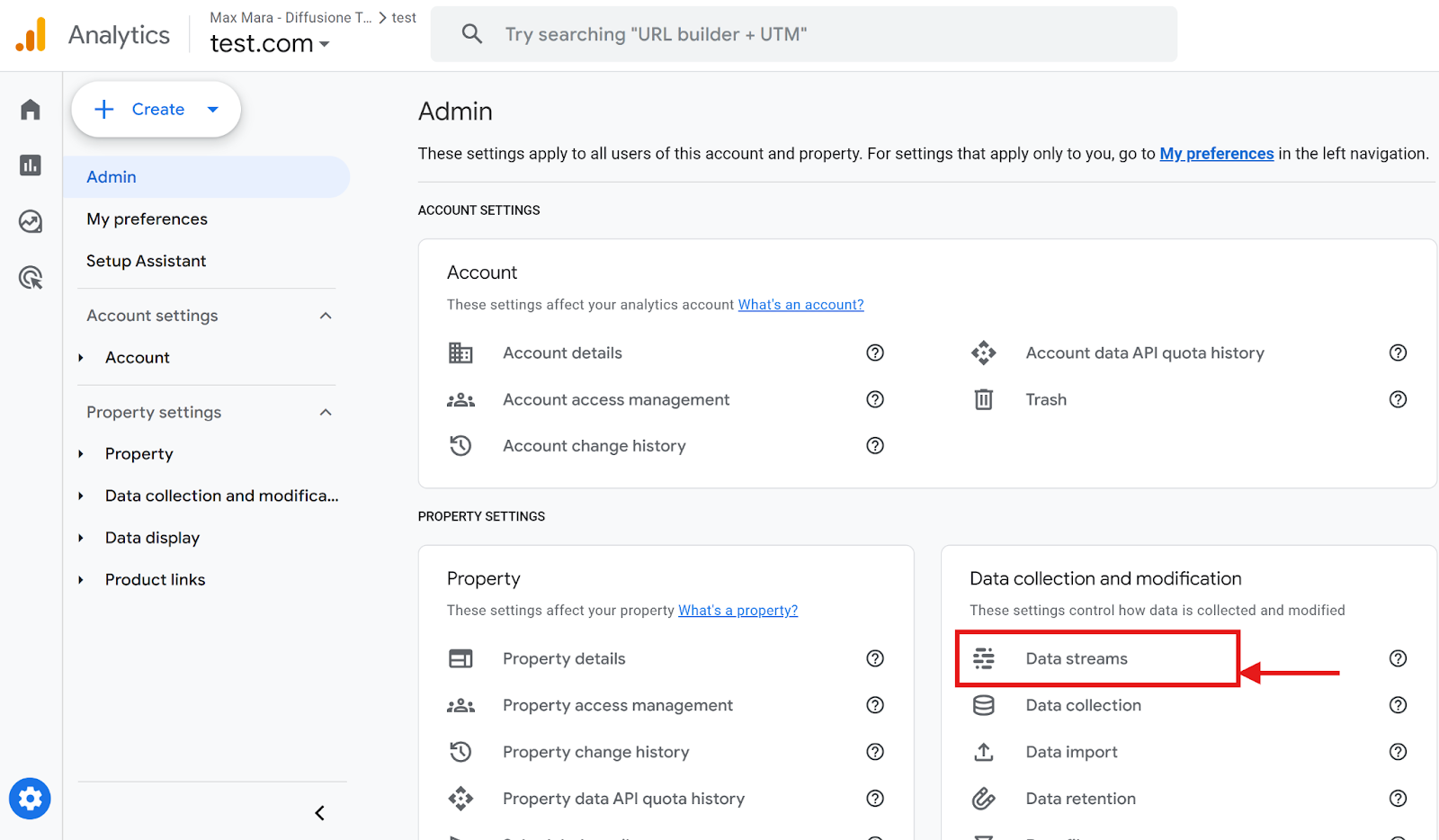
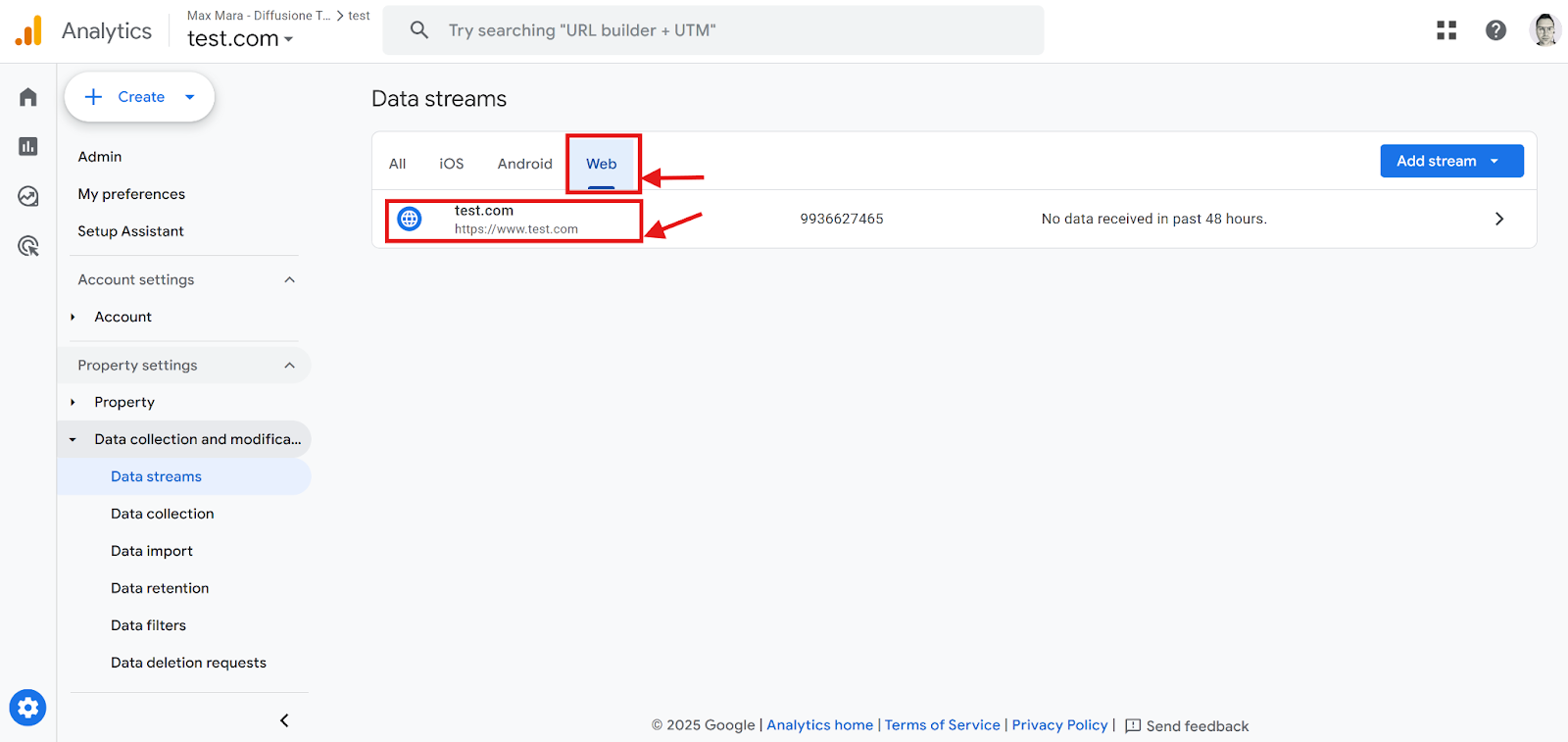
Under Data collection and modification, click Data streams.
-
Click your web data stream.
-
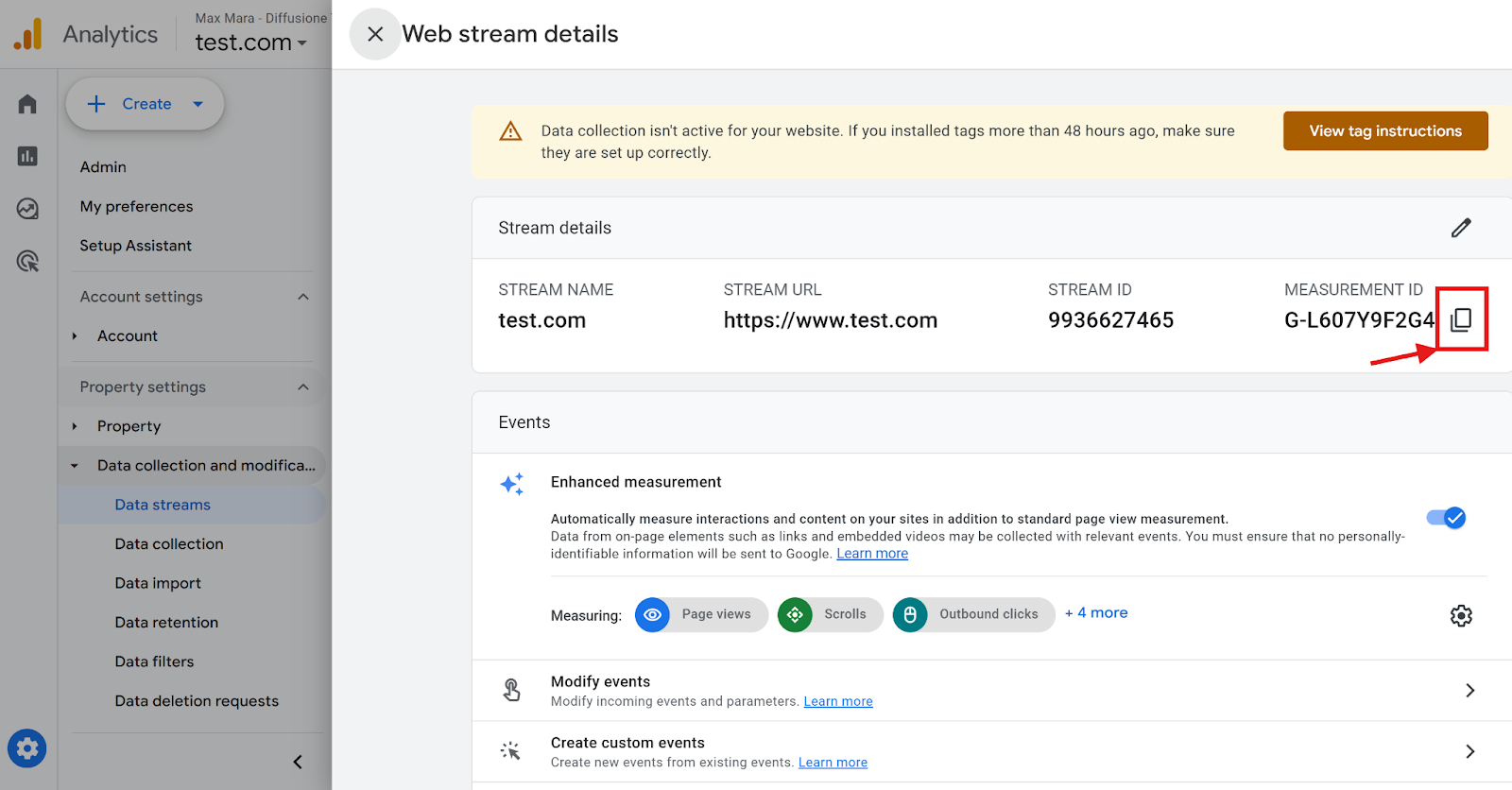
Copy the GA4 Measurement ID and paste it into the Measurement ID field in the integration window.
Obtaining the API Secret
-
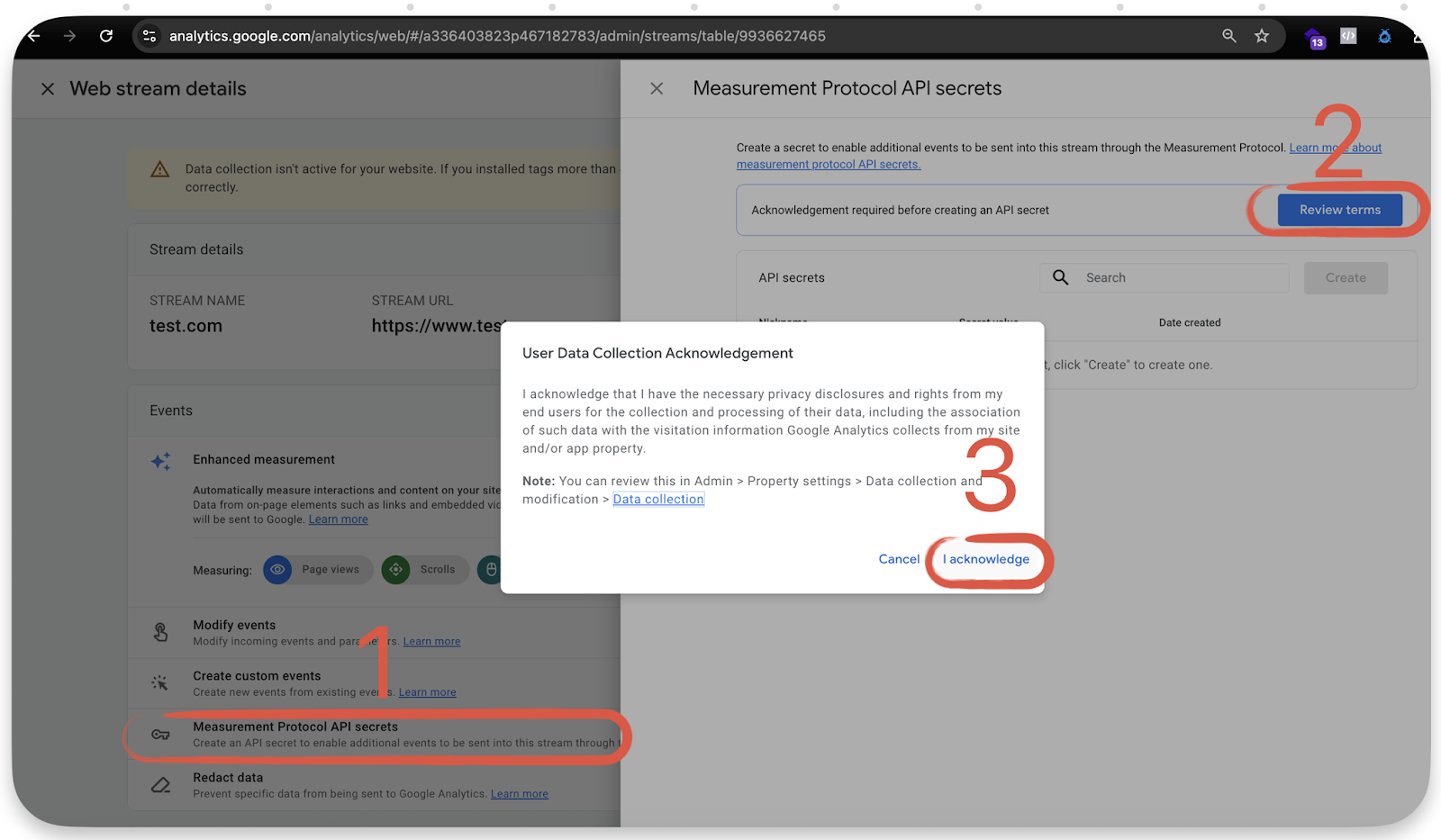
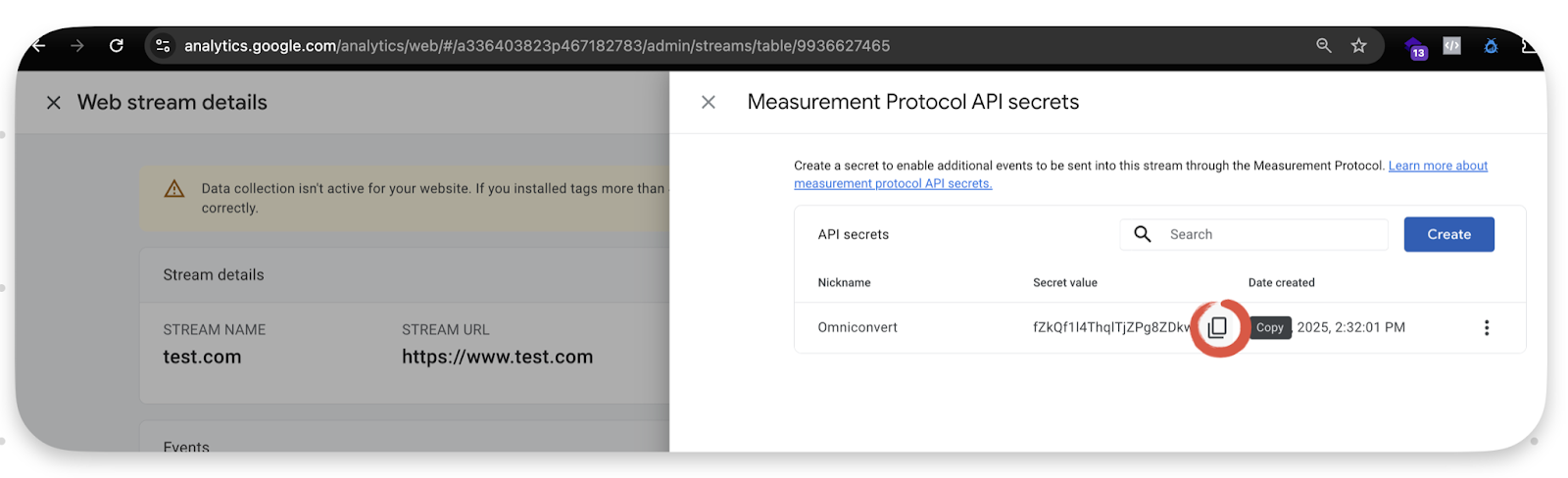
Scroll down on your GA4 web stream details page and click Measurement Protocol API secrets.
-
Click Review terms and acknowledge the User Data Collection Acknowledgement.
-
Click Create, name the secret (e.g.
Omniconvert), then click Create again in the modal.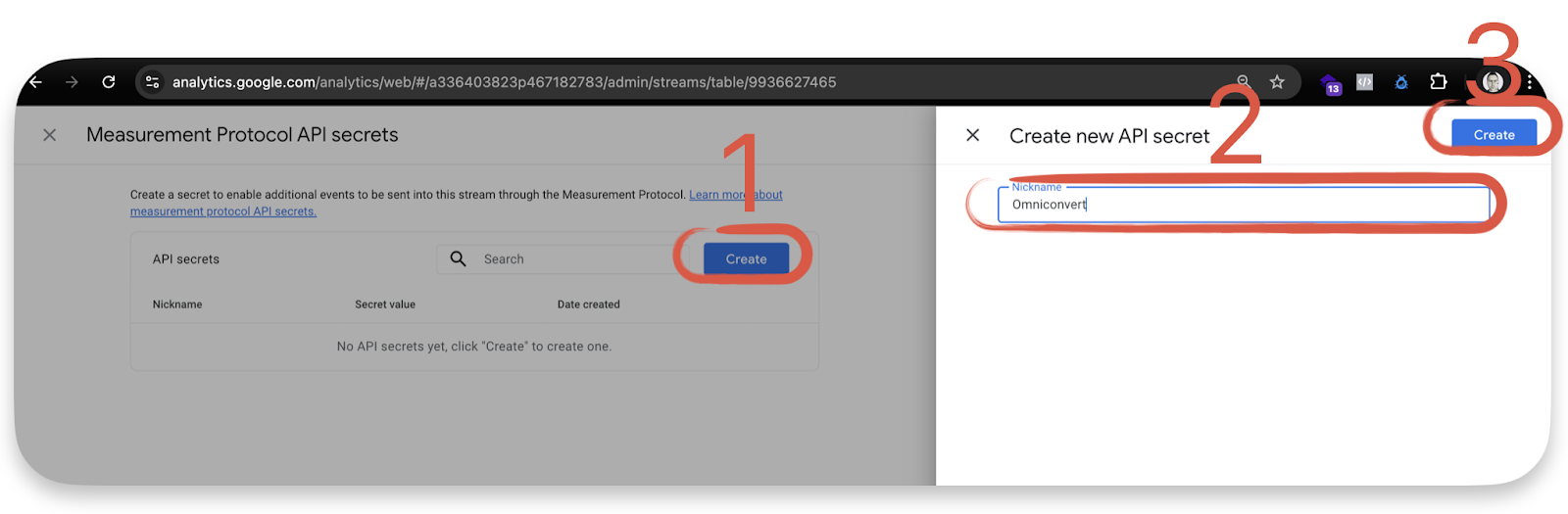
-
Copy the Secret value.
-
Paste it into the API Secret field in the integration window, then click Save.
Step 3 - Defining the custom dimensions in GA4
Even once the Omniconvert event starts collecting, Exp_Name and Exp_Var won't appear in your GA4 reports until you define them as custom dimensions - and they won't be populated retroactively for data collected before you define them.
-
Go to your Google Analytics account.
-
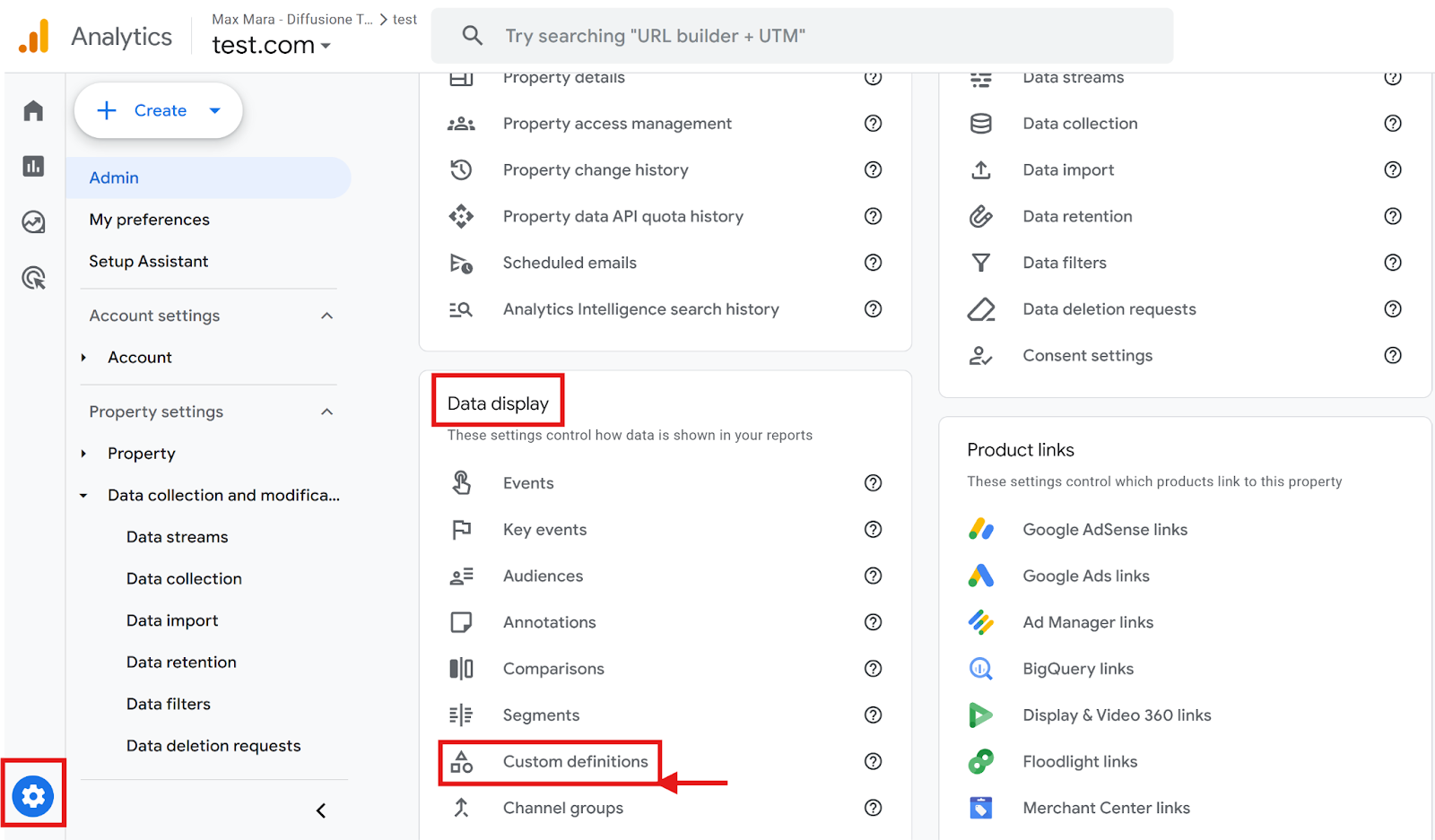
Click the cog icon to open Admin.
-
Under Data Display, click Custom Definitions.
-
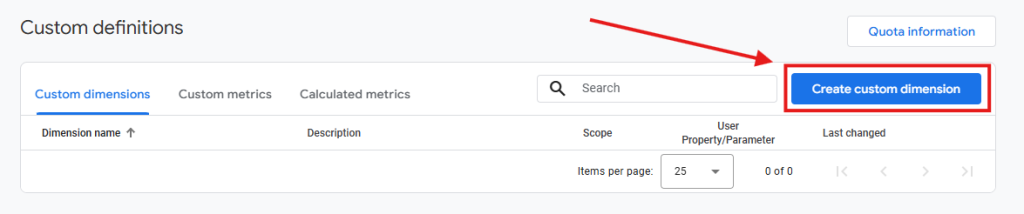
Click Create custom dimension.
-
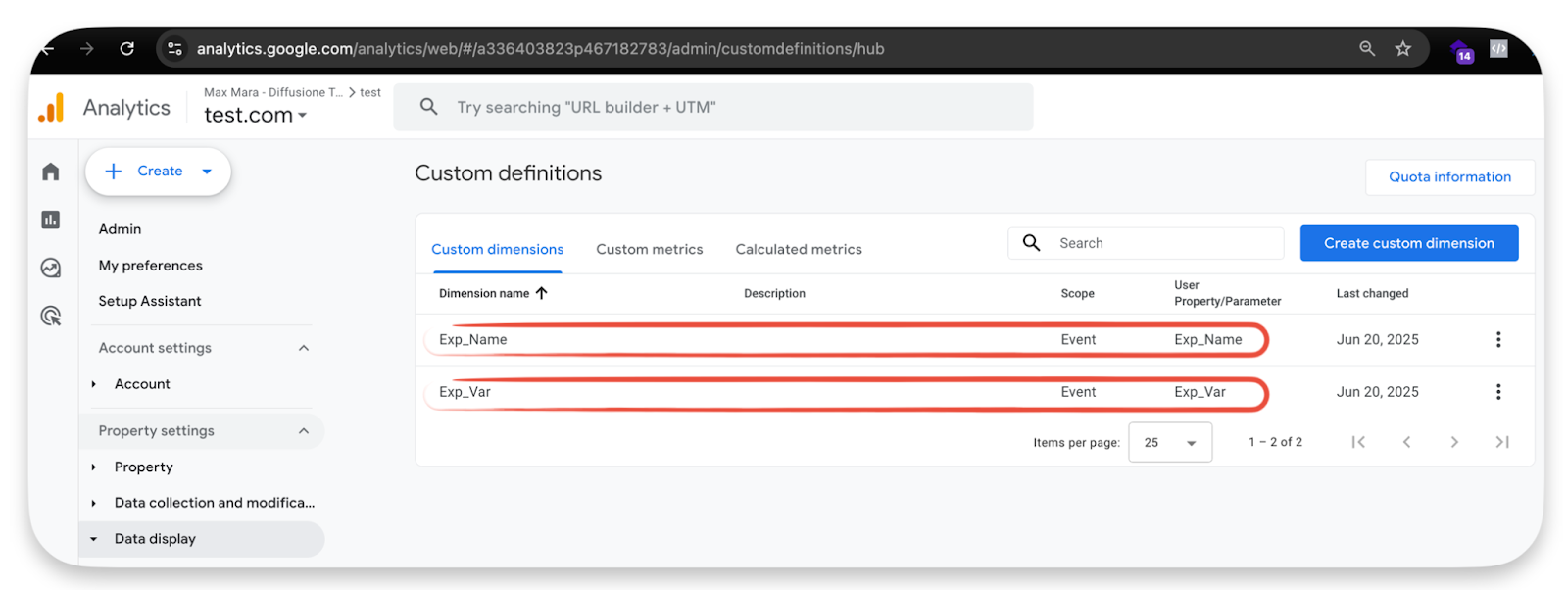
Input exactly
Exp_Namein both the Dimension name and Event parameter fields, set Scope to Event, and click Save.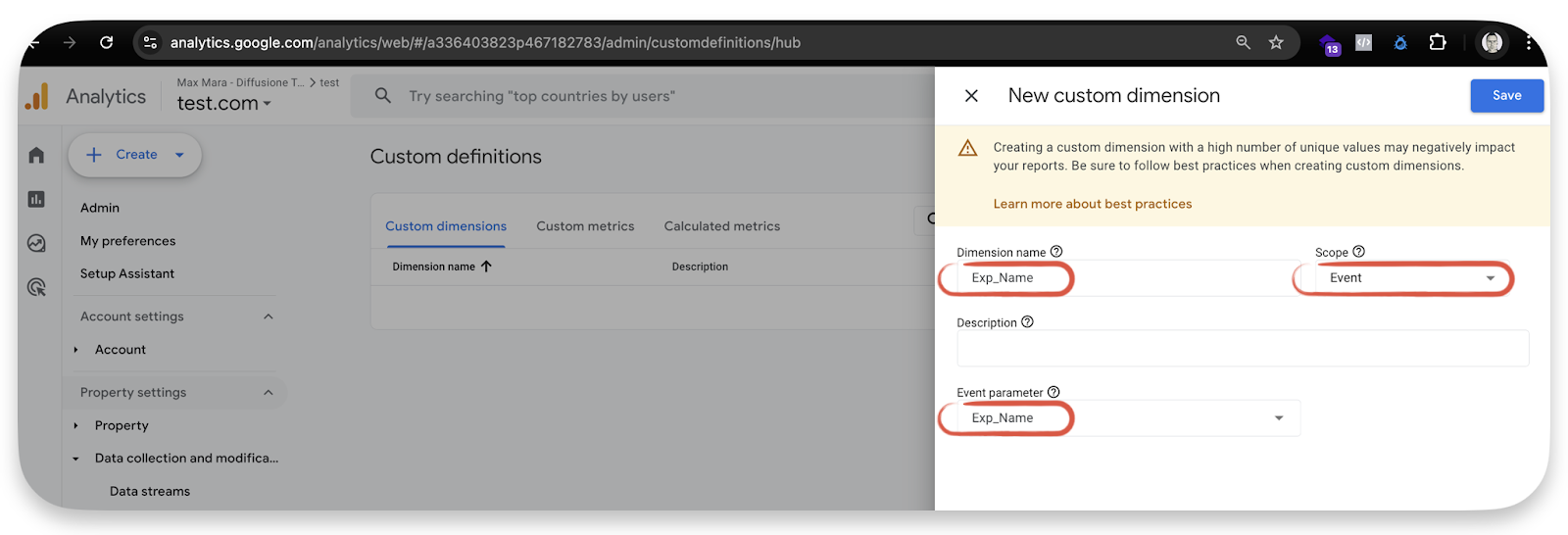
-
Repeat for
Exp_Var.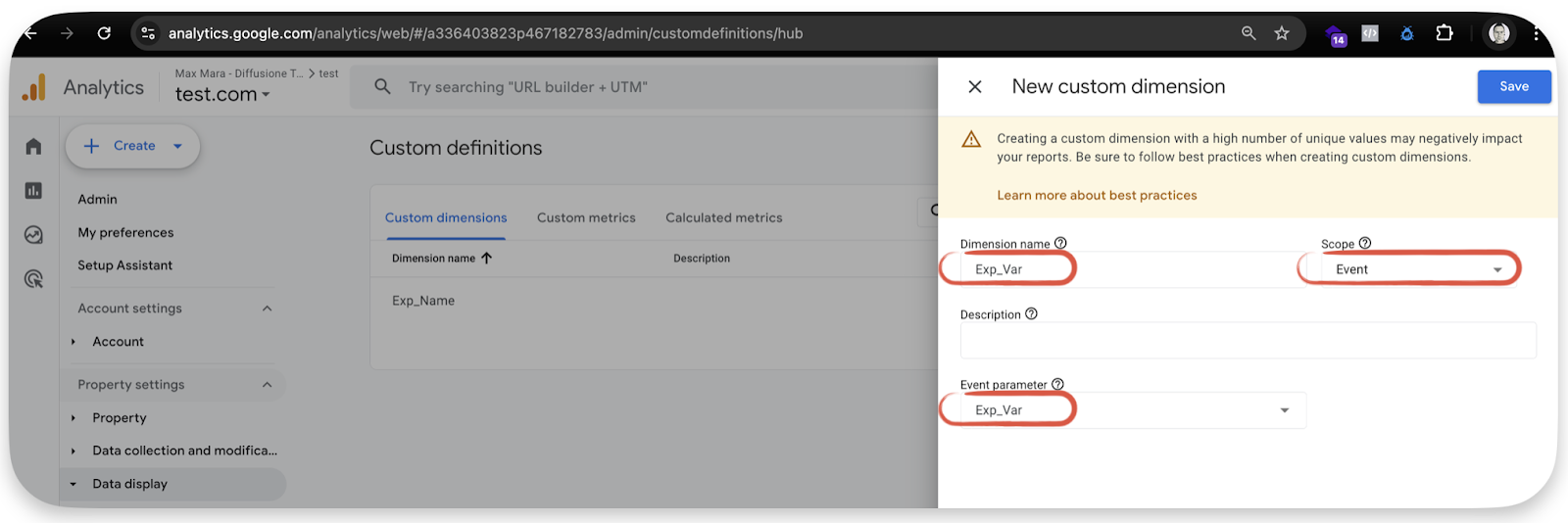
The end result should show both dimensions listed: