Integrate with Hotjar
Step 1 - Enable Hotjar in Explore
-
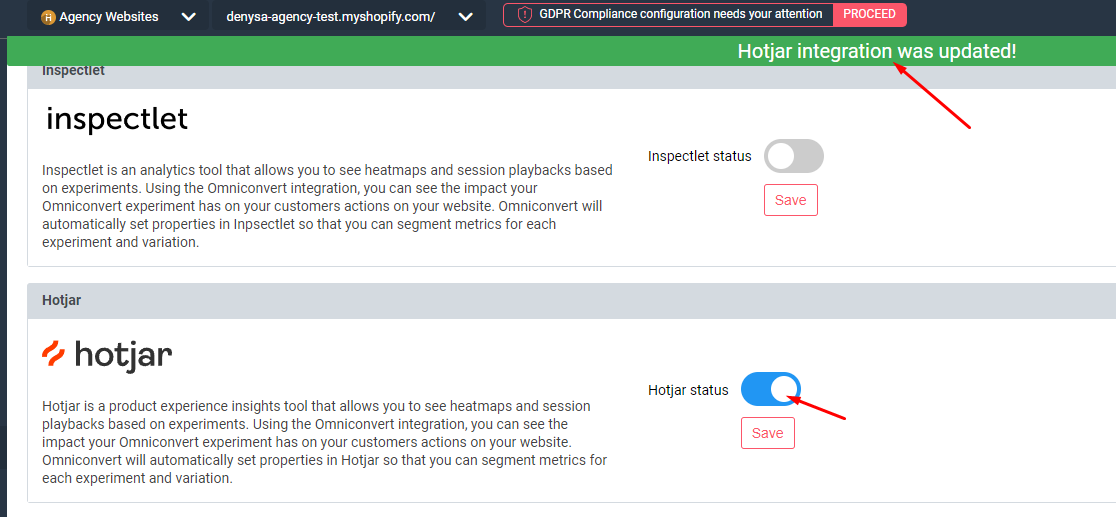
Click your website name to open the dropdown, then select Integrations.
-
Activate the connection with Hotjar and click Save.
Step 2 - View Session Recordings in Hotjar
-
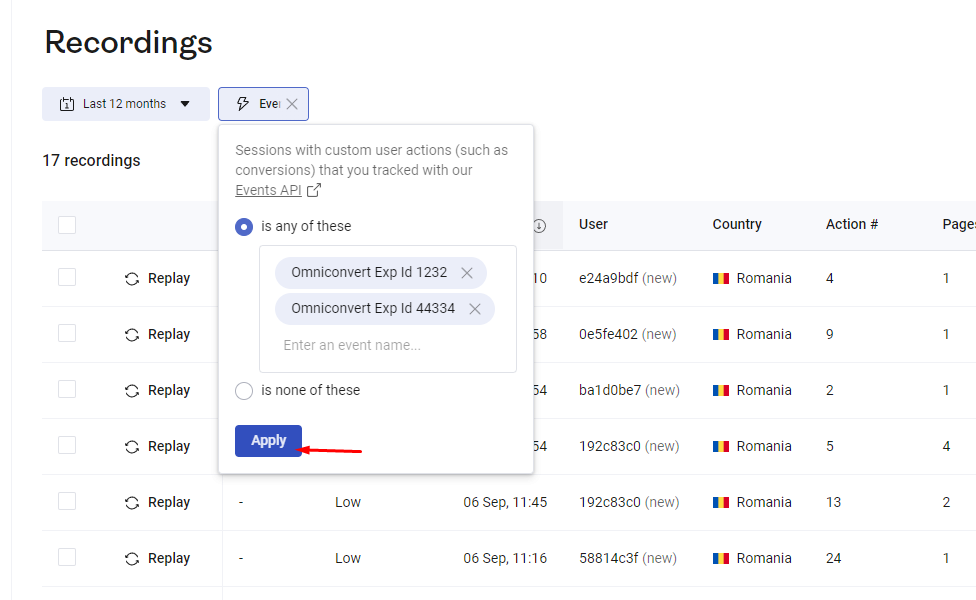
In Hotjar, click Recordings in the left-hand menu.
-
Use the filter option in the upper left, choosing Event.
-
Your Explore experiments appear in the dropdown - select one or more.
-
Click Apply.
Step 3 - View Heatmaps in Hotjar
-
Click Heatmaps in the left-hand menu.
-
Create a new Heatmap, name it, and click Next.
-
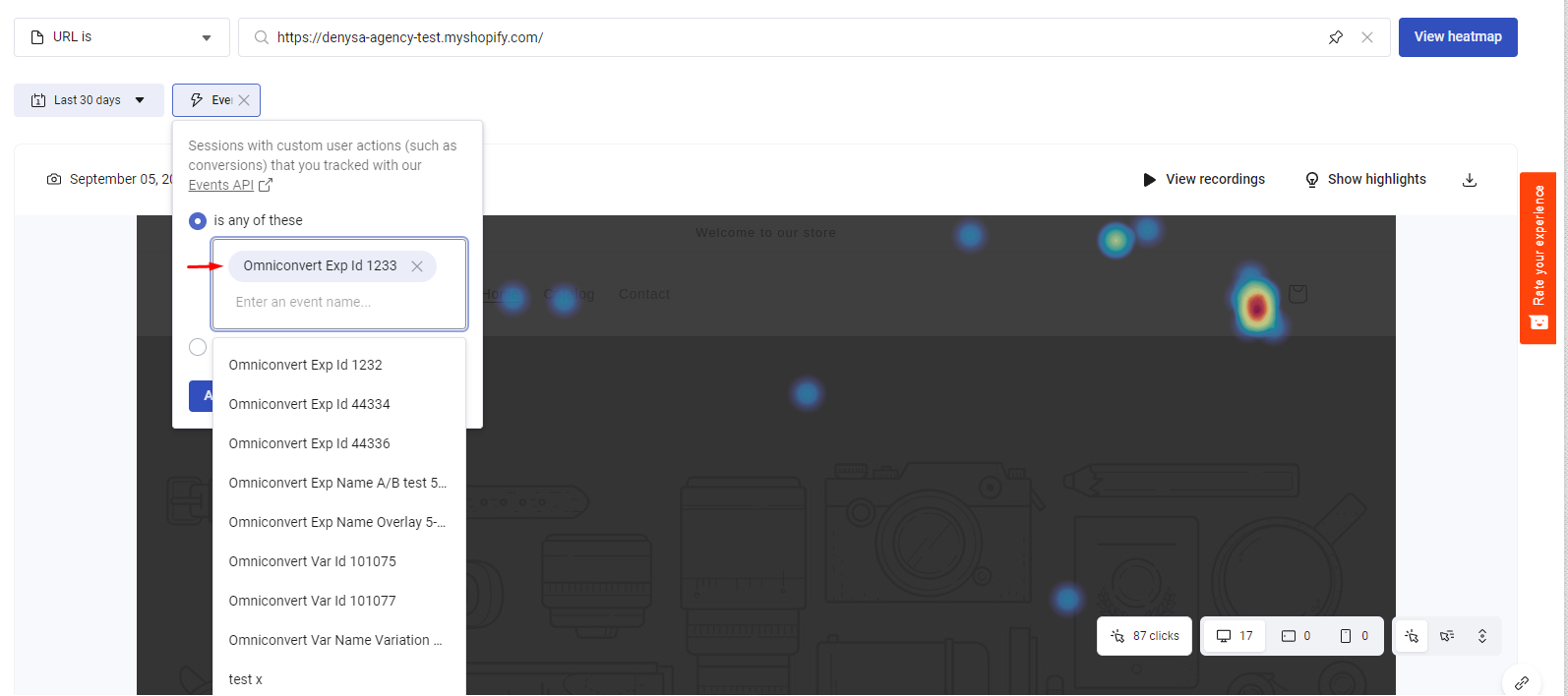
Click Add filter, select Event, and choose the Experiment ID you need.
-
Click Apply.