Integrate with GetResponse
Step 1 - Connect GetResponse with Explore
-
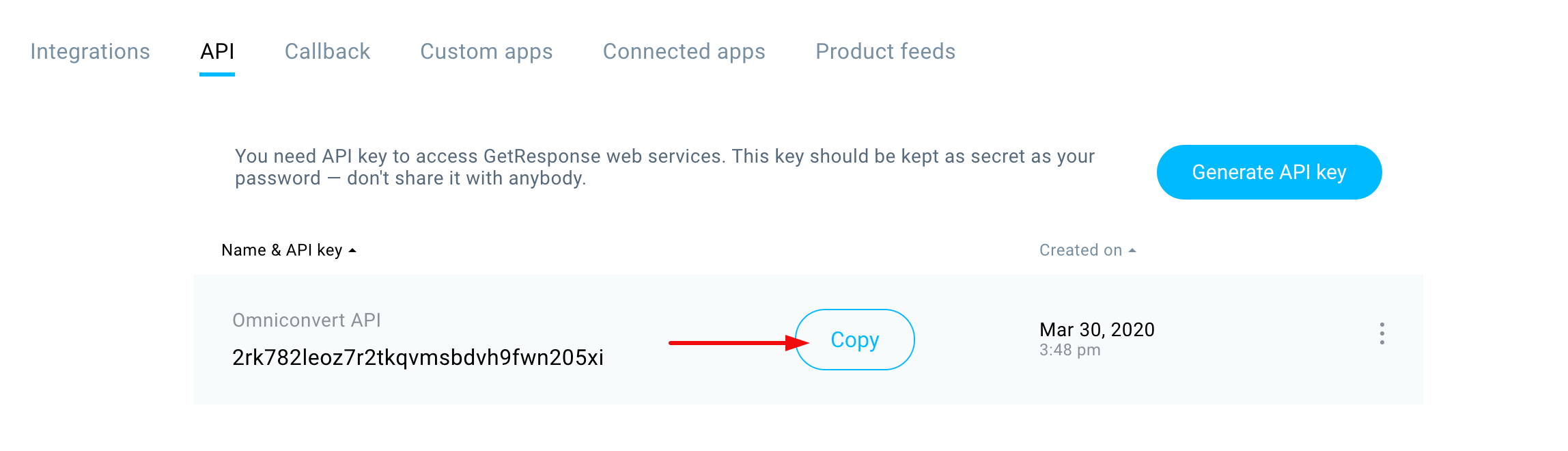
Log into your GetResponse account and go to Integrations and API, then click API from the menu.
-
If you haven't generated an API key yet, generate one and save it with a custom name.
-
Copy the API key.
-
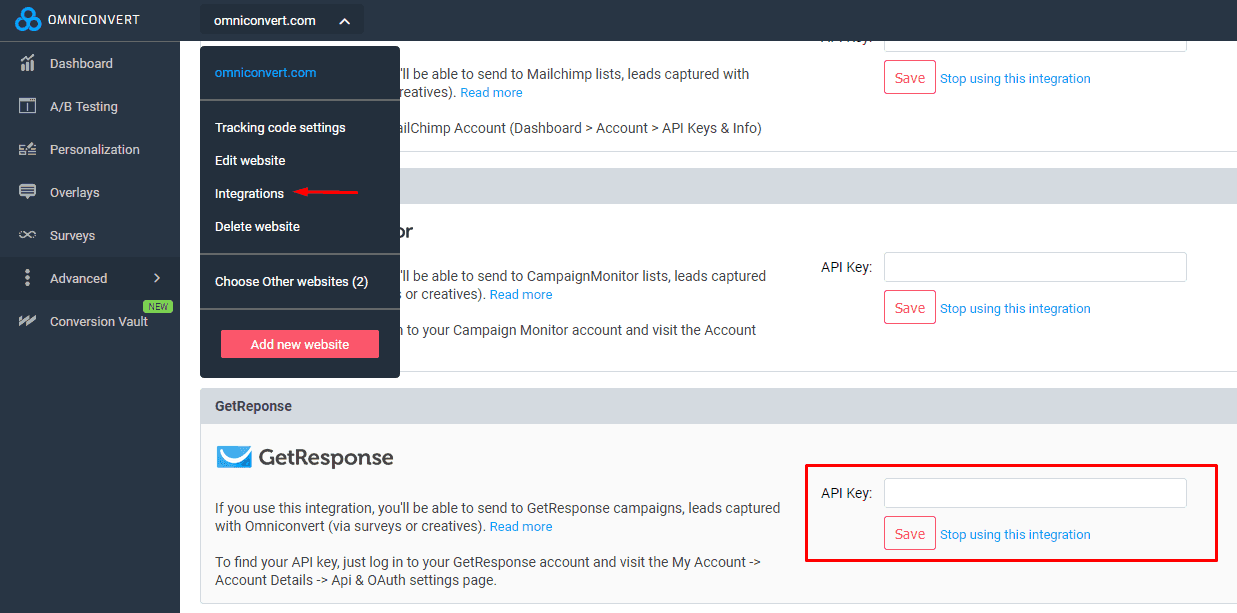
In Explore, click your website name, then Integrations.
-
Paste the API key into the GetResponse field and press Save.
Step 2 - Send Overlay leads to GetResponse
-
Create a New Overlay and select a lead-collecting template.
-
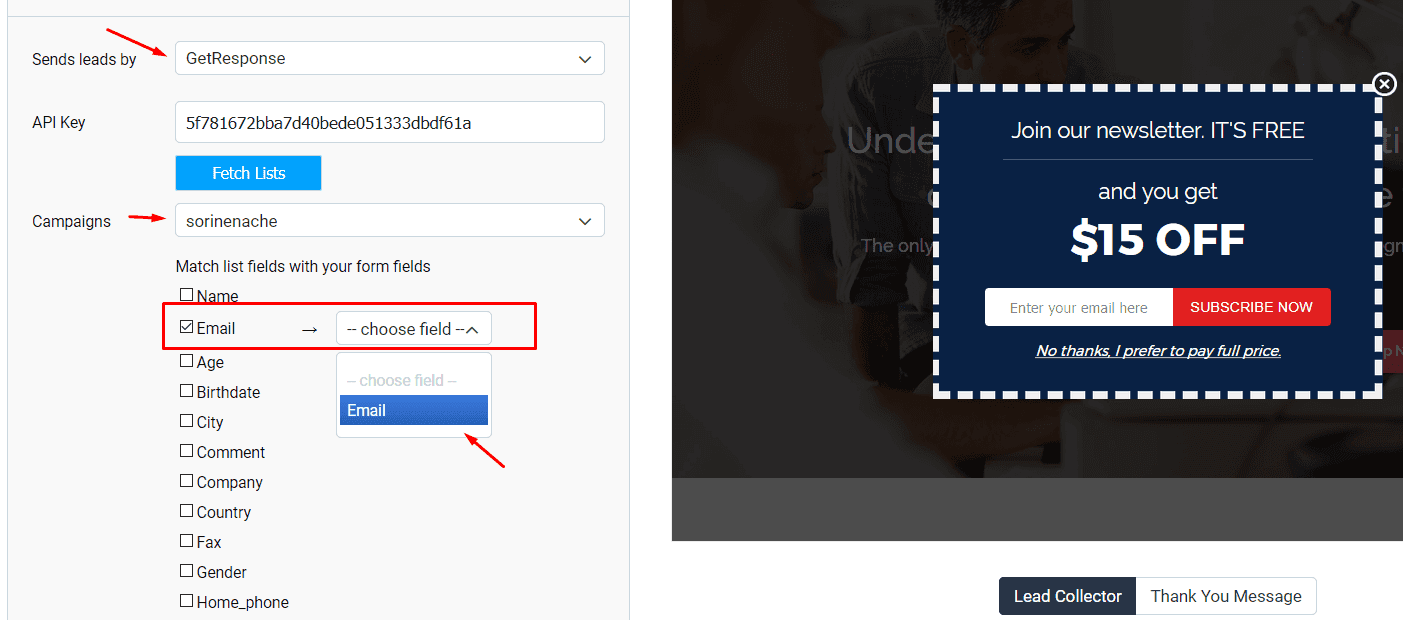
In the Variation, go to Send leads by and select GetResponse.
-
Once your lists load, choose the one you want, and match the fields in your GetResponse list against the fields available in your Explore Overlay.