
Understand Experiment Compatibility Rules
Overview
You can run unlimited experiments at the same time, as long as they don't target the same segment of visitors on the same page(s). When experiments do overlap, which one a visitor actually sees depends on exclusivity settings and priority order - both covered in detail below.
For the purposes of compatibility, experiments fall into three type groups:
-
A/B Test and Personalization (treated as one group)
-
Overlay
-
Survey
A/B Test and Personalization
Cannot run simultaneously if they target the same page and segment. Only the first one (by priority) will apply - the second is silently skipped for any visitor caught in the overlap.
Solutions
-
Split traffic between the two experiments (see the Traffic Allocation section below for how this cascading split actually works).
-
Use "Allow other experiments to run" as the exclusivity setting, so both can run on the same page and segment at once. Keep in mind this makes it harder to know which experiment is actually responsible for a change in conversion rate, unless you're tracking additional metrics to help separate their impact.
-
Segment them for different traffic types - for example, run Experiment 1 for one segment (like new visitors) and Experiment 2 for a different segment (like returning visitors), so they never actually compete for the same audience.
Always-compatible combinations
These can run simultaneously regardless of any other setting:
-
A/B Test and Overlay
-
A/B Test and Survey
-
Personalization and Overlay
-
Personalization and Survey
Overlay and Survey
Depends on the trigger:
-
Different triggers - both can run at the same time.
-
Same trigger - only one applies, based on priority or exclusivity.
Solution
Split traffic 50/50 between the two experiments.
Understanding Exclusivity
This is the setting most people get confused by, so let's go through it properly.
A very common misunderstanding: people assume two experiments with different-looking segments won't conflict. But segments overlap more often than expected - for example, "All visitors" always overlaps with "Desktop and Phone," because "All visitors" already includes desktop and phone visitors. If two experiments share any overlapping visitors on the same page, exclusivity rules kick in even if the segments have different names or setups.
There are three Exclusivity options, found in the experiment's Audience tab:
Normal (ignore other experiments)
The default. Use this when you genuinely don't mind if this experiment overlaps with others - useful for splitting traffic on a page deliberately (see the Traffic Allocation section below).
Exclusive
If a visitor has already seen this experiment, they will not see any other experiment of the same type group, for as long as this one is running. Use this when you want to guarantee clean, uncontaminated data - no visitor is ever counted in more than one overlapping experiment.
Allow other experiments to run
Lets this experiment run alongside others on the same page/segment, even if they'd otherwise conflict. This option needs to be enabled on your account first - if you don't see it, contact Omniconvert support to have it turned on.
How Traffic Allocation actually works when experiments overlap
This is the part that trips people up the most: Traffic Allocation percentages are not a fixed split of your total population. They work as a sequential, cascading process based on the Priority List.
Here's a worked example. Say you want to split all of a page's traffic 50/50 between two experiments:
-
Set Experiment 1 to 50% traffic allocation.
-
Set Experiment 2 to 100% traffic allocation.
Here's what actually happens for each visitor:
-
The visitor lands on the page and is first evaluated against Experiment 1 (because it's higher in priority).
-
They get a 50/50 roll: either they're included in Experiment 1, or they're not.
-
If they're not eligible for Experiment 1, they move on and are evaluated against Experiment 2 - which is set to 100%, so they're automatically included.
The end result is indeed a roughly 50/50 split between the two experiments - but it happens through this waterfall process, not through Explore literally carving your traffic into two static halves in advance.
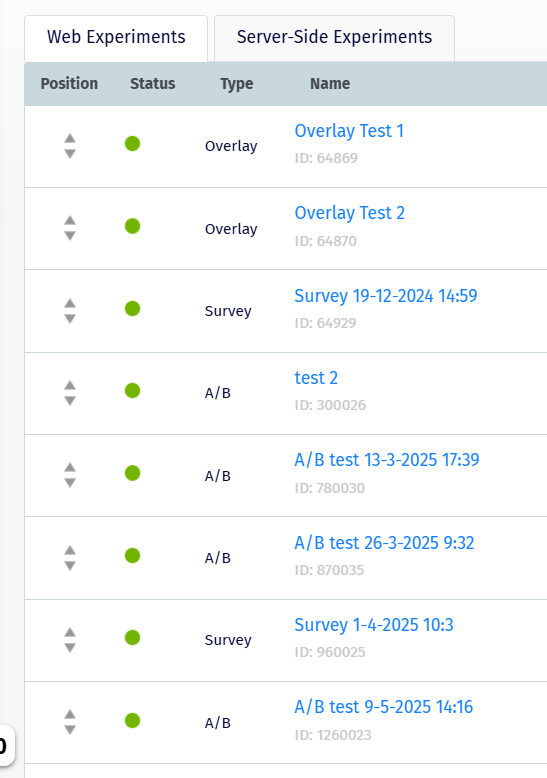
Setting the Priority List
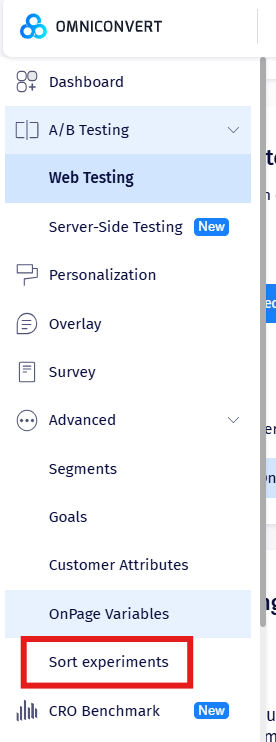
The order experiments are evaluated in matters, since it determines this cascade. Set it under Advanced → Sort Experiments.
Best practice
Where possible, avoid running multiple experiments on the same page at the same time - even when the compatibility rules technically allow it. When two experiments overlap on the same page, it becomes much harder to tell which one is actually responsible for a change in conversion rate.