
Integrate with Kissmetrics
Step 1 - Enable Kissmetrics in Explore
-
Click your website name to open the dropdown, then select Integrations.
-
Activate the connection with Kissmetrics and click Save.

Step 2 - View the data in Kissmetrics
-
Go to Metrics and click Add new metric.
-
Select a metric type - the events sent work with any type (e.g. Number of times event happened).
-
Choose the event type: Viewed experiment or Viewed survey.
Each event includes: ExperimentId, ExperimentName, VariationId, VariationName.
Step 3 - View the statistics
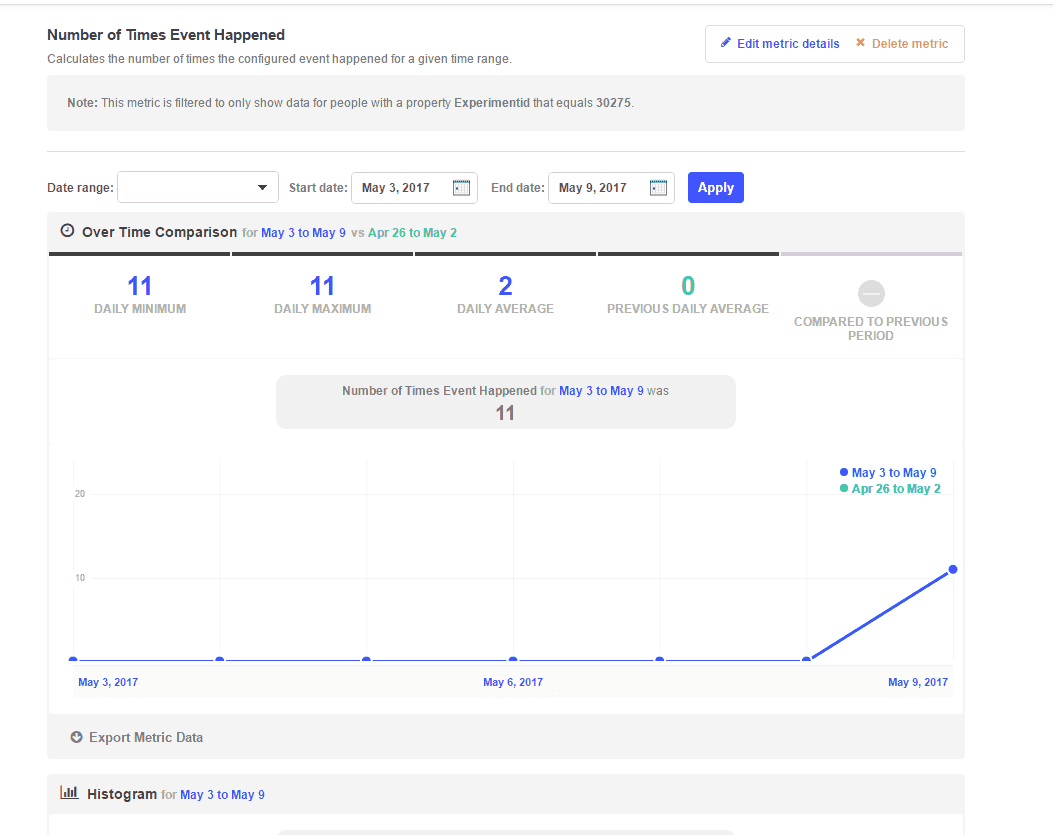
Go to Reports to build a custom report, or open Metrics and click the one you want to review.
Warning
Data sent by Explore takes up to 30 minutes to appear in Metrics and Reports.